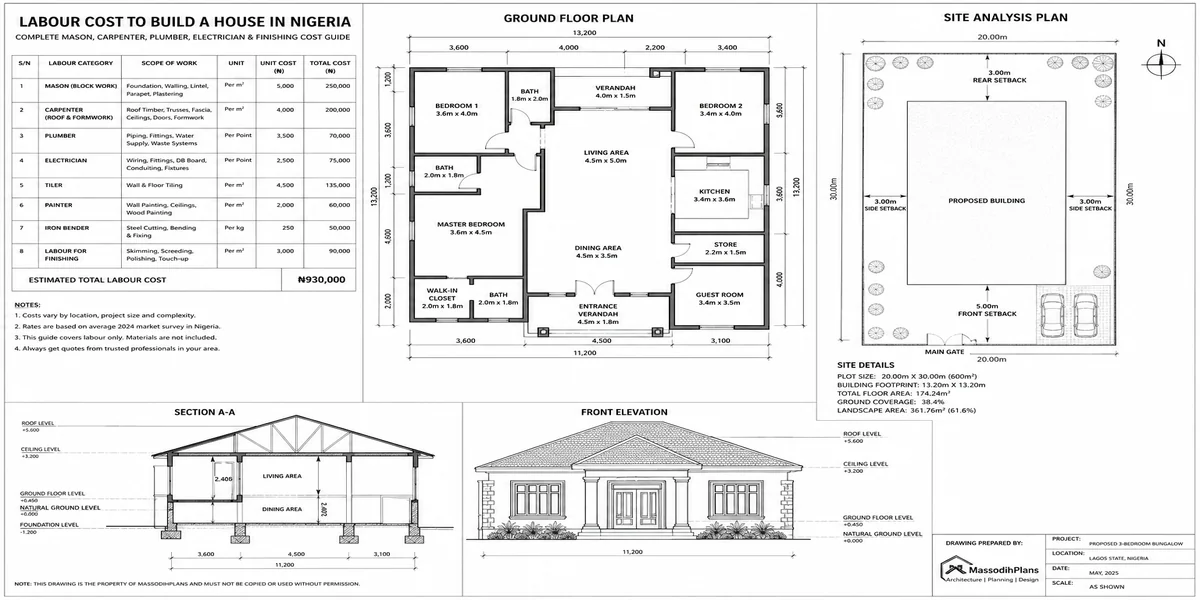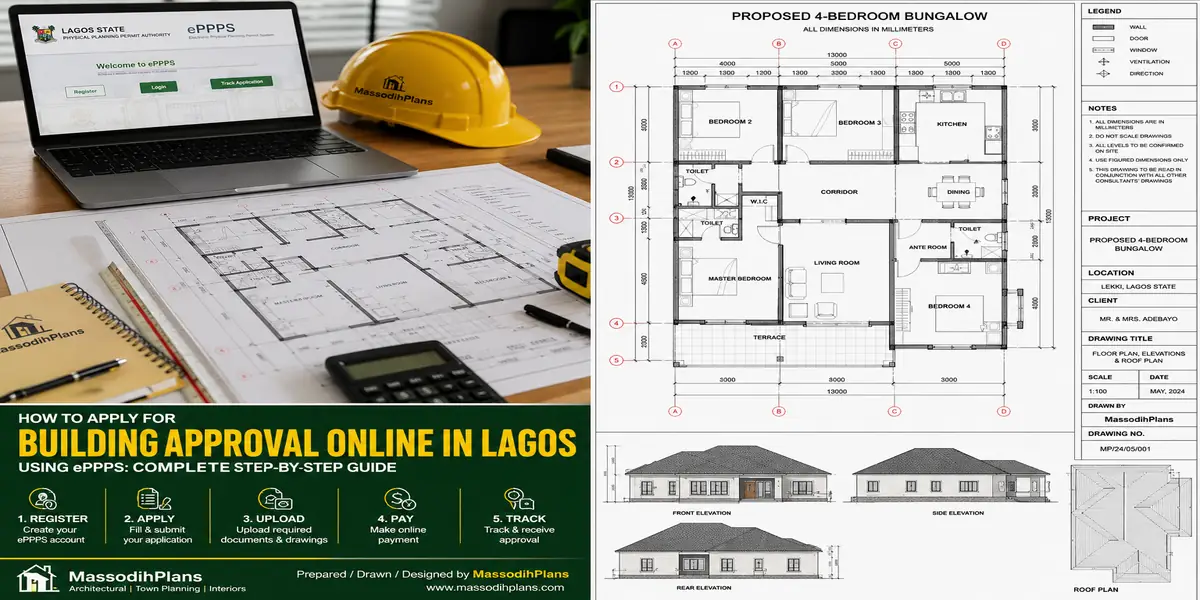
How to Apply for Building Approval Online in Lagos Using ePPPS
If you are planning to build in Lagos, one question matters before blocks, concrete or roofing: how do you actually get building approval online without getting lost in the process? The answer is the Lagos State Electronic Physical Planning Process System (ePPPS), the government’s digital platform for submitting and tracking physical planning applications.
And this is important in 2026: Lagos has moved to digital processing, with the State directing that planning permit applications be handled through ePPPS rather than the old manual route. So, if you are a homeowner, developer, architect, surveyor, or first-time builder, knowing where to click is only half the job. You also need to understand what to prepare before applying, which service to select, what happens after payment, how screening and queries work, and where applicants commonly make mistakes that slow everything down.
In this guide, I will walk you through the ePPPS application process from registration to submission, payment, document preparation, application tracking, responding to queries, and obtaining your planning permit. I will also explain the difference between submitting an application and being legally ready to start construction, because those are not the same thing.
Most importantly, I’ll show you the practical “approval-readiness” layer that many basic guides skip: how your land information, drawings, dimensions, professional documents, proposed development and planning requirements need to agree before you submit. That small detail can save you repeated corrections, wasted fees and frustrating delays.
By the end, you should know exactly what to do, what to check before clicking Submit, and what happens next whether you are building a bungalow, duplex, apartment, commercial property or another development anywhere in Lagos State. I’ve included a pre-submission check to help you catch avoidable problems early, before they waste time.
Before You Even Open the Portal: What You Need Ready
Here’s my first, genuinely practical piece of advice: don’t open ePPPS until every one of these items is sitting on your desktop as a digital file. Starting registration with incomplete documents is the single most common reason people abandon the process halfway and come back weeks later frustrated.
Your BVN or NIN. ePPPS registration makes one of these mandatory you cannot complete account creation without it. Have the exact number ready, not “somewhere in your phone.”
Digital copies of your core documents, scanned as clear PDFs (not photos taken at an angle) land title document, survey plan, architectural drawings signed and sealed by your ARCON-registered architect, and structural drawings signed and sealed by your COREN-registered structural engineer, as covered in our Lagos approval guide.
File Prep Tip: Name your files clearly before uploading “Architectural-Drawings-[YourName].pdf” rather than “Scan001.pdf.” Screening staff review dozens of applications; a clearly labeled file set genuinely reduces confusion and back-and-forth on your application.
A functioning email address you check regularly. ePPPS communicates status updates and requests for additional documents primarily through email and your dashboard an email you rarely check is a genuine, self-inflicted delay risk.
A card or account funded for online payment, since fee payment happens through the Lagos State Government’s Electronic Banking System (EBS-RCM) directly within the portal flow have this ready before you reach the payment stage so you’re not scrambling mid-application.
A decision on how you’re registering as an individual, an organization, or an agent since ePPPS asks this at the very first registration step and it shapes which fields you’ll need to complete. With everything staged, let’s actually create your account.
Creating Your ePPPS Account: The Registration Walkthrough
Navigate to the official portal at epp.lagosstate.gov.ng. This is genuinely worth double-checking always type the URL directly rather than clicking a link from an unverified source, given the fee scams that circulate around government portals.
Click “Register.” You’ll immediately be asked to choose your registration type: individual, organization, or agent. Most homeowners building their own house select individual.
Payer ID decision point. The system will ask whether you already have a Payer ID. If you’ve previously registered for any Lagos State Government revenue service, select “I have a Payer ID” and enter it. If this is genuinely your first interaction with Lagos State’s e-payment infrastructure, select “I do not have a Payer ID” the system generates one for you automatically during this registration process.
Registration Sequence
- Choose registration type (individual / organization / agent)
- Indicate whether you have an existing Payer ID
- Enter your BVN or NIN (mandatory)
- Complete all fields marked with a red asterisk
- Click “Next” at the end of each step don’t skip ahead
- Review your final step, then click “Submit” to complete registration
Enter your BVN or NIN when prompted. This field cannot be bypassed the system requires it as part of verifying your identity against Lagos State’s revenue and identity infrastructure.
Work through each step methodically. Every field marked with a red asterisk is mandatory, and the system moves you forward one step at a time using the “Next” button. I genuinely recommend not rushing this a typo in your name or ID number here can create mismatches that surface as problems much later, during payment confirmation or permit issuance.
Submit and confirm. Once you reach the final step and click “Submit,” your account is created. Check your email immediately for a confirmation message if it hasn’t arrived within a few minutes, check your spam folder before assuming something went wrong. With your account live, let’s log in and start your actual application.
Starting Your Application: Requesting the Service
Log in with your new credentials. Once inside, look for the tab labeled “Request for Service” on the left-hand navigation this is your entry point into any physical planning application, not a separate menu you’ll find elsewhere.
Select your service from the dropdown. For a new building, you’re looking for the building/planning permit application category, distinct from renovation permits or change-of-use applications, which sit as separate options in the same list. Choose carefully here selecting the wrong service type is a genuine, avoidable cause of rejected or delayed screening.
Common First-Timer Mistake: Selecting a generic or incorrect service category because the naming isn’t immediately obvious. If you’re unsure which exact option applies to your project new construction versus an addition to an existing building, for instance pause and confirm with your architect or a permit-experienced consultant before submitting, rather than guessing and having your application bounced back at screening.
Enter your project and site details. You’ll be asked to input information about your plot location, dimensions, and details drawn directly from your survey plan. This is exactly why having your survey plan open and readable while you fill this section matters; transcribing numbers from memory is how avoidable discrepancies creep in.
Upload your architectural drawings first. The system’s initial screening stage focuses specifically on your architectural drawings this is intentional, since architectural review happens before structural and engineering drawings are requested. Upload the clean, clearly labeled PDF you prepared in section one.
Submit for initial screening. Once submitted, your application moves into the queue for site inspection and architectural drawing screening the first genuine checkpoint in your application’s journey, which we’ll cover next.
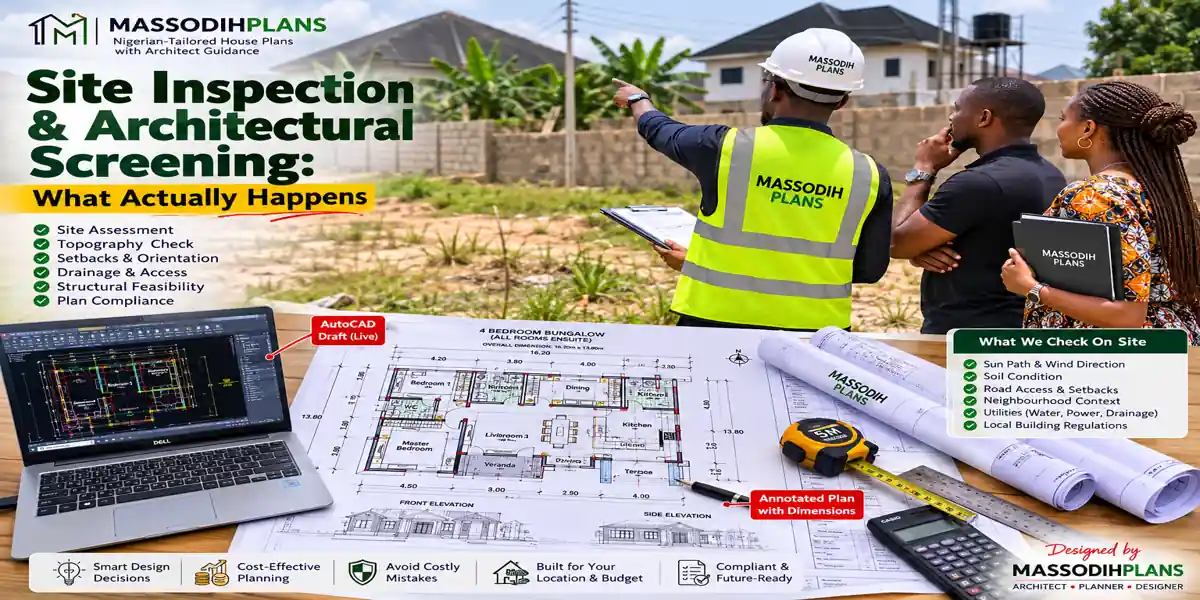
Site Inspection and Architectural Screening: What Actually Happens
This stage confuses a lot of first-time applicants because it feels like a black box after you’ve submitted so let me walk you through what’s genuinely happening on the other end.
A site inspection gets scheduled. After your initial submission, the relevant authority arranges a site visit to verify your plot’s physical condition matches what your survey plan and application describe boundaries, existing structures if any, and general site accessibility.
Your architectural drawings undergo technical screening in parallel. Reviewers check your drawings against zoning classification, setback requirements, and plot coverage limits for your specific zone the same zone-based logic covered in our pillar Lagos approval guide.
What Happens Next Depends on the Outcome
☐ Screening passes cleanly → system requests upload of engineering drawings (structural, and mechanical/electrical where applicable)
☐ Screening finds an issue → you receive comments requiring amendment before proceeding
☐ Site inspection reveals a discrepancy → application may be paused pending clarification or correction
If you receive amendment comments, don’t panic but don’t ignore them either. This is your dashboard and email doing exactly what they’re meant to do: flagging a specific issue for correction before the application proceeds further. Address the comment directly with your architect, re-upload the corrected drawing, and resubmit treating this stage seriously the first time genuinely saves you cycles later.
Once architectural screening succeeds, the system prompts you for the next document layer. For buildings with two floors and above, this means uploading structural drawings; for buildings with four floors and above, mechanical and electrical drawings join the requirement too. This staged document request rather than demanding everything upfront is one of the genuine improvements ePPPS brought over the older manual process. With engineering documents uploaded and screened, you’re ready for the stage everyone dreads slightly: payment.
Site Inspection and Architectural Screening: What Actually Happens
Making Payment Through the EBS-RCM System
Payment happens directly within the ePPPS flow, but it routes through the Lagos State Government’s Electronic Banking System worth understanding as a distinct step, not just “click pay.”
A payment popup opens showing your personal information, revenue details, payment details, and a revenue code. Review every field here carefully before proceeding the revenue code specifically should correspond to the exact service and fee category your application falls under.
Verify Before You Pay: The amount displayed should match your expected assessment based on your building’s calculated volume and zone rate if it looks significantly off from your own estimate (using the formula covered in our approval guide), pause and query it before paying rather than after.
Complete payment through your card or linked account. Once processed, the system generates a Lagos State Government Treasury Receipt this is your proof of payment, and you should save a copy immediately, both as a downloaded file and, honestly, as a screenshot too. Government portals occasionally have display or download glitches, and you don’t want your only proof of payment trapped in a session that later times out.
Confirm your payment within the portal. This is a step people genuinely miss paying doesn’t automatically register as “confirmed” in the application workflow. You need to log back into the EPP portal, locate your application, and actively click “Confirm Payment,” then enter your Receipt Number and click Submit. For part-payments specifically, you’ll also need to input your Screening Number alongside the receipt number.
Watch for the confirmation to register on your dashboard. Once successfully confirmed, your application status should update, unlocking the next stage of the process. With payment handled and confirmed, let’s move to the part of the application that finally puts your project’s full details on record.
Completing the Full Application Form and Tracking Progress
Once payment is confirmed, the system enables the full Application Form for completion this is deliberately sequenced after payment, not before, so pay attention here if you were expecting to fill everything in one pass.
Complete every required field of the application form, covering the fuller project details the system needs on record building specifications, applicant details, and any remaining project information not captured in your earlier submission.
Tracking Your Application: Two Channels, Use Both
☐ Check your email regularly the system sends notifications at key status changes
☐ Log into your dashboard periodically and actively check application status, rather than waiting passively for email alone
☐ Don’t assume silence means a problem some stages genuinely take processing time without triggering a notification
☐ If status appears stuck for an unusually long period, follow up directly rather than assuming it will resolve itself
Monitor both your dashboard and your email consistently through the remaining processing stages the government’s own guidance is explicit that applicants should check both channels regularly, since the system informs you at each completed stage of the process, but proactive checking catches issues faster than passive waiting.
Wait for the completion notification. Once every stage architectural screening, engineering screening, payment, and form completion has processed successfully, you’ll be notified specifically about permit collection readiness, which brings us to the final, genuinely satisfying step.
Collecting Your Permit: The Final Step
This is where the digital process meets a physical requirement, and it’s worth knowing in advance so you’re not caught unprepared at the finish line.
Check your email for the permit collection notification. Once it arrives, print your Permit Notification Letter directly from the system.
What to Bring for Collection: Your printed Permit Notification Letter, plus 6 sets of your screened Architectural, Structural, and Mechanical/Electrical drawings (as applicable to your building), each duly signed and sealed by the relevant registered professionals these physical sets get formally endorsed at collection, becoming your official approved construction documents.
Have your professionals ensure all six sets are properly signed and sealed before you go for collection this isn’t a formality the collecting office will overlook, and arriving with incomplete or improperly signed sets means a return trip.
Once endorsed, these documents become your legally approved building plans the exact set your LASBCA inspector will reference during construction-stage site visits, and the same documents you’ll want stored safely for any future resale, mortgage, or regularization need.
With your permit in hand, remember the next legal step covered in our pillar guide: you must still give LASBCA seven days’ written notice of your intention to commence construction before breaking ground the ePPPS permit alone doesn’t skip that requirement.
When Things Go Wrong: Troubleshooting the Real Problems
This is genuinely the section I think makes this guide different from everything else published on this topic, because government portal experiences rarely go exactly as documented let’s address the real friction points honestly.
Payment shows as deducted but not reflected in the portal. This happens on government payment gateways more often than anyone likes to admit. Save your bank alert or transaction reference immediately, don’t attempt to pay again while troubleshooting, and follow up with your bank transaction reference ready attempting a second payment before resolving the first risks a genuine double-charge situation.
Troubleshooting Quick Reference
☐ Payment deducted, not reflected → save transaction reference, don’t repay immediately, follow up with proof
☐ Document upload rejected → check file format (PDF preferred) and file size limits before re-uploading
☐ Application stuck at a stage with no update → log in and check dashboard actively; don’t rely on email alone
☐ Screening comments unclear → contact your architect/engineer to interpret and correct precisely what’s flagged
☐ Login issues after long inactivity → use password reset rather than repeatedly guessing; avoid creating a duplicate account
Document upload gets rejected or fails silently
Confirm your file is a genuine PDF, not a renamed image file, and check that it’s within any stated size limit an oversized scan (high-resolution photos saved as PDF, for instance) is a common, easily fixed cause of upload failure.
Your application appears stuck with no visible progress
Before assuming the worst, actively log in and check your dashboard rather than relying purely on email some processing stages genuinely take time without triggering a notification. If it’s been meaningfully longer than the timelines discussed in our pillar guide, that’s when direct follow-up with the relevant office becomes appropriate.
Screening comments feel vague or hard to interpret
Don’t guess at what a reviewer meant route the comment directly to your architect or structural engineer, since they’re best positioned to interpret technical planning language and correct the specific issue precisely, rather than resubmitting a broadly revised drawing that might miss the actual point raised.
You’re tempted to create a second account because you can’t remember your login
Resist this. Use the portal’s password reset function instead a duplicate account for the same applicant and project creates genuine confusion in the system and can complicate your application’s processing rather than solving your access problem.
Working through ePPPS carefully, the way this guide has walked you through, genuinely delivers on what the system promises a faster, more transparent process than the old manual system ever offered. The applicants who struggle with it are almost always the ones who rushed a step, skipped a confirmation click, or didn’t have their documents genuinely ready before starting every one of those is avoidable with the sequence laid out here.
If you’d like hands-on support preparing your documents for ePPPS submission, or want us to manage the application process directly on your behalf, our [Services] page connects you with our team. For the full picture on fees, required documents, and realistic timelines, revisit our Lagos building plan approval guide, and for the national picture across other Nigerian states, see our Nigeria house plan approval guide. To explore house plans already structured with Lagos approval requirements in mind, browse our [Plans Library], or return to our [Homepage] for more guides like this one.
Read Related guides bleow:
- How Long Does Building Approval Take in Lagos? Complete Timeline From Application to Final Permit Approval
- Lagos Building Approval Documents: Complete Checklist of Survey, Title, Drawings, Tax Clearance, and More
- How Much Is a Building Permit in Lagos State? Complete Current Fee and Approval Cost Guide for Developers
- Building Plan Approval Cost in Lagos: Complete Guide to Official Fees, Assessments, and Extra Charges
- Terraced Duplex Cost in Lagos: Complete Buying, Building, Construction, and Budget Guide for Homeowners
- Detached House Building Cost in Lagos: Complete Landed Property and Construction Budget Planning Guide
- 5 Bedroom Duplex Cost in Lagos: Complete Construction Budget for Materials, Labour, Finishing, and Design
- 4 Bedroom House Construction Cost in Lagos: Standard, Mid-Range, and Luxury Building Budget Explained
- 3 Bedroom House Construction Cost in Lagos: Complete Budget Breakdown From Foundation to Final Finishes
- 2 Bedroom House Construction Cost in Lagos: Complete Budget, Materials, Labour, and Finishing Cost Guide
- How Much Does It Cost to Build a House in Lagos? Complete Construction Budget and Cost Breakdown Guide
- Lagos Building Plan Approval: Complete Guide to Fees, Documents, Application Process, Timeline, and ePPPS
- Cost of Building a House in Lagos: Complete Budget Guide to Materials, Labour, Design, and Approval Costs
- Architecture & Architectural Design: Complete Guide to Modern Houses, Building Design and Modern Architecture
- Sustainable Landscaping: Complete Guide to Xeriscaping, Landscape Lighting and Water-Efficient Gardens
Author
Massodih Okon is a Nigerian built-environment professional with academic and professional experience in urban and regional planning, geography, architectural design, Landscape Design, GIS and land development.
He holds a Master’s degree in Urban and Regional Planning from the University of Uyo and a first degree in Geography and Regional Planning.
Through MassodihPlans, he publishes practical guides on Nigerian house plans, building design, physical planning, site planning, development approval and residential construction. Read the full author profile →