How Do I Convert GIS Data Between Formats? for Nigerian Land Planning Guide
Let me guess why you’re here. You’ve got a file sitting on your desktop maybe a shapefile a client sent you, maybe a spreadsheet of coordinates your field surveyor emailed you, maybe a KML someone exported from Google Earth and the software you actually need to use won’t open it. Or it opens it, but half your attribute columns are now called “FIELD_1” and “FIELD_2” because something got mangled along the way.
That’s not a “you” problem. That’s a GIS problem, and it’s as old as the discipline itself. I’ve been doing this for over 15 years as a Town Planner and Architectural Designer with hands-on GIS work across South-South Nigeria, and I can tell you honestly: format conversion isn’t the glamorous part of this job, but getting it wrong has quietly ruined more planning reports, more site analyses, and more client presentations than bad analysis ever has. So let’s actually fix that, properly, format by format.
Why GIS Format Conversion Is Trickier Than It Looks
Here’s the thing nobody tells beginners: GIS formats aren’t just different file extensions wearing different clothes. They store geometry, attributes, and spatial reference information in fundamentally different structures, and some of them simply cannot hold everything another format is carrying. Convert carelessly, and you don’t get an error message you get silent data loss. A field name quietly truncated. A coordinate system quietly dropped. A 3D elevation value quietly flattened to 2D. The conversion “succeeds” and your map is now subtly wrong, which is far more dangerous than a conversion that fails loudly.
So before touching any specific format pair, keep three questions in your head for every single conversion you ever do:
- Does the target format support everything the source format is carrying (geometry type, attribute types, coordinate system)?
- Is the coordinate reference system (CRS) being preserved, or do I need to reproject?
- Am I converting a one-off file, or will I need to repeat this conversion regularly (which changes which tool is worth learning)?
Keep those three in mind, and every section below will make a lot more sense.
The Tools You’ll Actually Use
Before the format-by-format breakdown, a quick orientation, because which tool you reach for matters as much as knowing the steps.
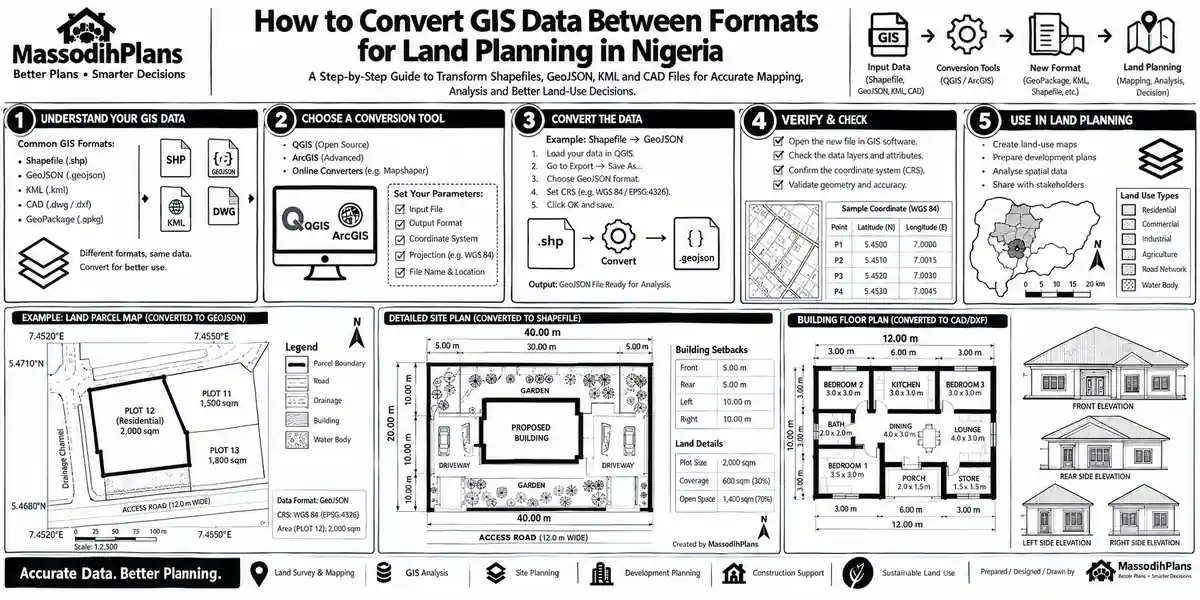
QGIS (free, open-source) the workhorse for almost every conversion below, available on Windows, Mac, and Linux, and the one tool I recommend you actually learn properly rather than hopping between random online converters
ogr2ogr (free, command-line, part of the GDAL library) faster and more precise than any graphical tool once you’re comfortable with it, and the only sane option when you need to convert dozens or hundreds of files at once
ArcGIS Pro / ArcMap (commercial) common in government agencies and larger firms across the US, UK, and Gulf states, with its own conversion toolbox
Online converters (MyGeodata, GeoJSON.io, and similar) fine for a single small file when you’re away from your main machine, but never for sensitive client or government data, and never for anything above a few megabytes
If you only learn one tool properly from this list, learn QGIS. It’s free, it handles every format pair in this guide, and once you understand its “Export” and “Save As” conversion logic, you’ll never be stuck waiting for an online tool to finish uploading a file again.
With that groundwork laid, let’s get into the actual conversions starting with the one almost every GIS person does in their very first week on the job.
SHP to KML: Getting Your Shapefile Into Google Earth
A shapefile isn’t really one file it’s a family of at least three (.shp, .shx, .dbf, often plus .prj and others), and KML is the single-file format Google Earth and Google Maps actually read. You’ll do this conversion constantly whenever a client, a community stakeholder, or a non-GIS colleague needs to “just see it on Google Earth” without installing any GIS software.
In QGIS: Load your shapefile, right-click the layer in the Layers panel, choose Export → Save Features As, and select KML as the format. Set the CRS to WGS 84 (EPSG:4326) if it isn’t already KML only understands this coordinate system, and this is the single most common mistake people make at this step.
Using ogr2ogr: ogr2ogr -f KML output.kml input.shp
What commonly breaks: attribute data. KML wasn’t built as a rich attribute-table format the way a shapefile is, so complex attribute fields sometimes get squeezed into a generic description box instead of staying as clean, separate fields. If your KML needs to preserve detailed attributes for something like a styled property boundary map, check the output carefully before sending it onward.
KML to SHP: Getting Google Earth Data Into Real GIS Software
This one runs the other direction you’ve got a KML (maybe placemarks someone dropped in Google Earth, maybe a KMZ a field team exported from a mobile app) and you need it in a shapefile to actually analyze it in QGIS or ArcGIS.
In QGIS: Drag the KML directly into the Layers panel QGIS reads KML natively then right-click and Export → Save Features As → ESRI Shapefile.
Using ogr2ogr: ogr2ogr -f "ESRI Shapefile" output.shp input.kml
A genuinely important snag here: if your KML is actually a KMZ (a zipped KML), most tools won’t read it directly you’ll need to unzip it first, or use Google Earth itself to re-export it as plain KML before converting. This trips up more people than almost anything else on this list.
And here’s where I have to pause and gist with you small, because if you’ve been in this field long enough, you already know wetin dey happen: client go send you one KML wey dem create for Google Earth with their phone, and when you open am for QGIS, na straight line connecting Lagos to London, because dem click “add point” for the wrong place. Na so GIS people dey reduce grey hair come plenty before their time but no worry, na part of the job be that.
CSV to SHP: Turning a Spreadsheet of Coordinates Into Real Geometry
This is probably the most common conversion a town planner or surveyor does, because field data almost always arrives as a spreadsheet first a list of points with latitude and longitude columns, maybe building locations, maybe sample points, maybe household survey coordinates.
In QGIS: Use Layer → Add Layer → Add Delimited Text Layer. Point it to your CSV, tell it which columns hold your X (longitude) and Y (latitude) values, set the CRS (almost always WGS 84 to start), and QGIS creates a temporary point layer from it. Then right-click and Export → Save Features As → ESRI Shapefile to make it permanent.
Using ogr2ogr: This needs a small companion file (a .vrt file) telling GDAL which columns are the geometry, since CSV has no built-in geometry concept.
What to check before you trust the result: your column headers must be clean (no spaces, no special characters), your latitude and longitude values must actually be numbers (not text with stray characters), and your decimal format must be consistent a single comma used as a decimal separator instead of a period, common in CSVs exported from German, French, or other European-locale spreadsheet software, will silently produce nonsense coordinates.
Before You Convert: Always open your CSV in a plain text editor, not just Excel, before converting it. Excel sometimes auto-formats coordinate values in ways you can’t see on screen rounding a critical decimal place, or converting a value into a date and you won’t notice until your points land in the ocean instead of on your site.
Excel to GIS: The Step Most People Get Wrong Before They Even Start
This deserves its own section because so many people treat “Excel to GIS” as the same thing as “CSV to GIS” it isn’t, quite.
The real first step is exporting your Excel workbook to CSV format (File → Save As → CSV), because GIS tools generally don’t read .xlsx directly with full reliability, especially if your workbook has multiple sheets, merged cells, or formulas instead of plain values. Once you have a clean CSV, follow the CSV-to-SHP process above.
The traps specific to Excel data: merged header cells that break column alignment on export, formulas that convert to blank or error values instead of their calculated result when saved as CSV, and this one catches people in the UK, US, Germany, and Gulf states alike depending on their regional Excel settings coordinate columns accidentally auto-formatted as dates (Excel has a long, frustrating history of “helpfully” turning a number like 10/5 into a date).
Clients across the US, Canada, UK, Australia, Germany, Switzerland, and the Gulf region all send me Excel files built in slightly different regional formats (different decimal separators, different date formats, different default CRS assumptions baked into whatever survey app generated them), and the fix is always the same: strip it down to a clean CSV with plain numeric coordinates before it ever touches a GIS tool.
Having sorted out the spreadsheet mess, let’s move to a format built specifically for the modern web one that behaves far better than CSV or KML when it comes to preserving structure.
GeoJSON to SHP: Bringing Web Map Data Into Desktop GIS
GeoJSON has become the default format for web mapping Leaflet, Mapbox, and most modern map APIs speak GeoJSON natively so you’ll regularly need to pull a GeoJSON file (downloaded from an open data portal, or exported from a web mapping tool) into a desktop GIS environment for deeper analysis.
In QGIS: GeoJSON opens natively just drag it into the Layers panel, no import wizard needed. Then Export → Save Features As → ESRI Shapefile.
Using ogr2ogr: ogr2ogr -f "ESRI Shapefile" output.shp input.geojson
The one real limitation to watch for: shapefiles cap attribute field names at 10 characters and have stricter data-type rules than GeoJSON. If your GeoJSON has a field called building_classification, your shapefile will quietly truncate it to something like building_c, and if you have several similarly-named long fields, they may collide and overwrite each other. Rename your important fields to short, distinct names before converting, not after.
Raster to Vector: Turning Pixels Into Shapes You Can Analyze
Now we shift from one file-format conversion to a genuinely different kind of conversion this one changes the actual data model, not just the file extension. Raster data (satellite imagery, scanned maps, elevation models) is a grid of pixels, each holding a value. Vector data is points, lines, and polygons with attributes. Converting raster to vector means extracting meaningful shapes out of that pixel grid turning, say, a classified land-use raster into clean polygons you can measure, query, and style individually.
In QGIS: Raster → Conversion → Polygonize (Raster to Vector). This works best on a raster that’s already been classified into distinct value zones (for example, a land-cover classification with limited categories) rather than raw, continuous imagery.
What goes wrong most often: polygonizing a raw, unclassified raster (like a straight satellite photo) produces an unusably enormous number of tiny, jagged polygons essentially one polygon per pixel cluster because the tool has no idea which pixel values are “meaningfully different” from their neighbours. Classify or simplify your raster first (grouping similar values into defined categories), then polygonize. Skipping this step is the single biggest reason people conclude “raster-to-vector doesn’t work” when really, the input just wasn’t ready for it.
Vector to Raster: Turning Shapes Back Into a Grid
This runs the opposite direction, and it’s essential whenever you need to do raster-based analysis (like overlay math, surface modelling, or feeding data into a model that only accepts grid inputs) starting from vector boundaries zoning polygons, building footprints, land parcels.
In QGIS: Raster → Conversion → Rasterize (Vector to Raster). You choose which attribute field’s values get “burned” into the output grid, and critically, you set the pixel (cell) size this decision alone determines whether your output is usable or useless.
Here’s the detail almost nobody explains clearly: pixel size is a trade-off, not a technical afterthought. Too coarse a cell size, and small but important polygons (a narrow road reserve, a thin drainage buffer) vanish entirely because they’re smaller than a single pixel. Too fine a cell size, and your file becomes enormous and painfully slow to process for no real analytical benefit. Match your cell size to the smallest feature you actually need to represent accurately, not to whatever default the software suggests.
And speaking of defaults make I yarn you one more thing before we move on, because this one dey vex me well well anytime I see am: person go rasterize their whole town’s zoning map with cell size wey big reach one whole football field, then dem go wonder why their result dey look like abstract art instead of a proper map. My brother, my sister, the computer no sabi say na your town planning project e go just do wetin you tell am. Garbage cell size in, garbage map out.
The Layer Almost No Article Covers: Coordinate Reference Systems During Conversion
This is genuinely the part where most “how to convert GIS formats” content online stops short, and it’s exactly where real projects go wrong. Converting a file’s format and converting (or preserving) its coordinate reference system are two separate operations, and treating them as one is how two datasets that both “look fine individually” end up hundreds of metres apart when you try to overlay them.
When you convert any file, always check:
- What CRS is the source file actually in? (Check the
.prjfile for a shapefile, or inspect thecrsproperty in a GeoJSON.) - Does your target format support that CRS? (KML only supports WGS 84 if your source data is in a local or national grid system, it must be reprojected, not just converted.)
- Are you reprojecting intentionally, or is a tool silently reprojecting (or failing to) without telling you?
This matters enormously depending on where you’re working. A planning dataset built around Nigeria’s local grid systems, the UK’s OSGB36/British National Grid, Germany’s various UTM zones, Switzerland’s LV95, or UAE’s local Gulf projections all need explicit, deliberate handling never assume a conversion tool “just knows” what you meant.
Choosing the Right Format for the Job (Not Just What You Have)
Every conversion above assumes you already know your target format. But the better question, before you convert anything, is often: should this data even be in that format?
Shapefile — still the universal standard most GIS software reads, but its 2GB size limit, 10-character field name cap, and multi-file structure make it a poor choice for large or complex modern datasets
GeoJSON — ideal for web mapping and smaller datasets, human-readable, but can become slow and bulky at large scale
KML/KMZ — built for visualization in Google Earth/Maps, not analysis; never use it as your working analytical format
CSV — fine for simple point data with clean coordinates, useless for lines, polygons, or anything with real geometric complexity
GeoPackage (.gpkg) — the format more GIS professionals are quietly switching to: single-file like a shapefile, but without the field-name limits, size caps, or multi-file headaches. If you’re starting a new project today and nobody’s forcing a specific legacy format on you, this is genuinely worth learning instead of defaulting to shapefile out of habit.
Don’t convert into a format just because it’s familiar. Ask what the receiving software, the receiving person, or the receiving system actually needs a client who just wants to “see it” needs KML; a GIS analyst who’ll be running spatial queries needs a proper shapefile or GeoPackage, not a KML you forced them to convert back themselves.
Troubleshooting: The Errors You’ll Actually Hit
“Unsupported geometry type” usually means your target format can’t handle mixed geometry (points and polygons in one file); split them into separate layers before converting
Attribute fields renamed to FIELD_1, FIELD_2 almost always a field-name-length or special-character issue; clean your field names before converting, never after
Points landing in the wrong location entirely (often in the ocean, or on a different continent) a CRS mismatch almost every time; check what coordinate system your source data was actually captured in
File “converts successfully” but won’t open in the target software check for a corrupted or missing companion file (a shapefile missing its .prj, or a KMZ that wasn, correctly unzipped)
Huge, slow, unusable file after raster-to-vector conversion your source raster wasn’t classified/simplified before polygonizing
Frequently Asked Questions
What’s the best free tool to convert GIS data between formats?
QGIS, for nearly everything in this guide. It’s free, actively maintained, cross-platform, and handles every conversion pair covered here without needing a second tool.
Can I convert GIS data without any software, just online?
Yes, for small, non-sensitive files tools like MyGeodata Converter or GeoJSON.io work for quick, one-off conversions. For client data, government data, or anything containing personal or sensitive location information, keep the conversion on your own machine instead.
Why did my shapefile lose some of my column names after converting to CSV or back?
Shapefiles cap attribute field names at 10 characters. Long or similarly-named fields get truncated and can collide. Rename important fields to short, distinct names before converting.
Why do my converted points show up in the wrong location?
Almost always a coordinate reference system issue either the source CRS wasn’t correctly identified, or the target format assumed a different one (KML, for instance, only understands WGS 84).
Is raster-to-vector conversion always a good idea for land-use data?
Only once your raster is properly classified into distinct categories. Converting a raw, unclassified image produces an unusable mess of tiny polygons rather than clean, analyzable shapes.
Should I use shapefile or GeoPackage for a new project?
If you’re not locked into shapefile by a client’s or agency’s legacy requirement, GeoPackage is generally the better modern choice fewer limitations, single file, cleaner structure.
Finally
Format conversion looks like a small technical chore until the day it quietly costs you a wrong site boundary, a flooded field survey, or a client presentation where two layers that should overlap are sitting a kilometre apart. Treat every conversion as two decisions, not one what format, and what coordinate system and you’ll avoid the overwhelming majority of problems covered above, whether you’re working a site in Uyo, a layout in Lagos, a parcel in London, or a planning dataset anywhere from Toronto to Doha.
If you’re working through a planning or site project and need this kind of GIS and layout support handled for you, our Services page outlines how we help with exactly this. Browse our Plans Library for building and layout plans developed with proper spatial and planning rigor behind them, or visit Plan School to build up your own planning and design literacy further. You can also explore more planning, architecture, and GIS guides on our Homepage.
- How Do I Convert CAD Drawings to GIS? GIS for Land-Site Planning in Nigeria
- How Do I Convert Shapefile to KML? — Nigerian GIS and Site Mapping Tutorial
- How Do I Convert Shapefile to KML? — Nigerian GIS and Site Mapping Tutorial
- How do I georeference an image? Nigeria site mapping and building plans
- How Do I Download Google Earth Imagery? Nigerian Site Mapping for Buildings
Author
Massodih Okon is a Nigerian built-environment professional with academic and professional experience in urban and regional planning, geography, architectural design, Landscape Design, GIS and land development.
He holds a Master’s degree in Urban and Regional Planning from the University of Uyo and a first degree in Geography and Regional Planning.
Through MassodihPlans, he publishes practical guides on Nigerian house plans, building design, physical planning, site planning, development approval and residential construction. Read the full author profile →