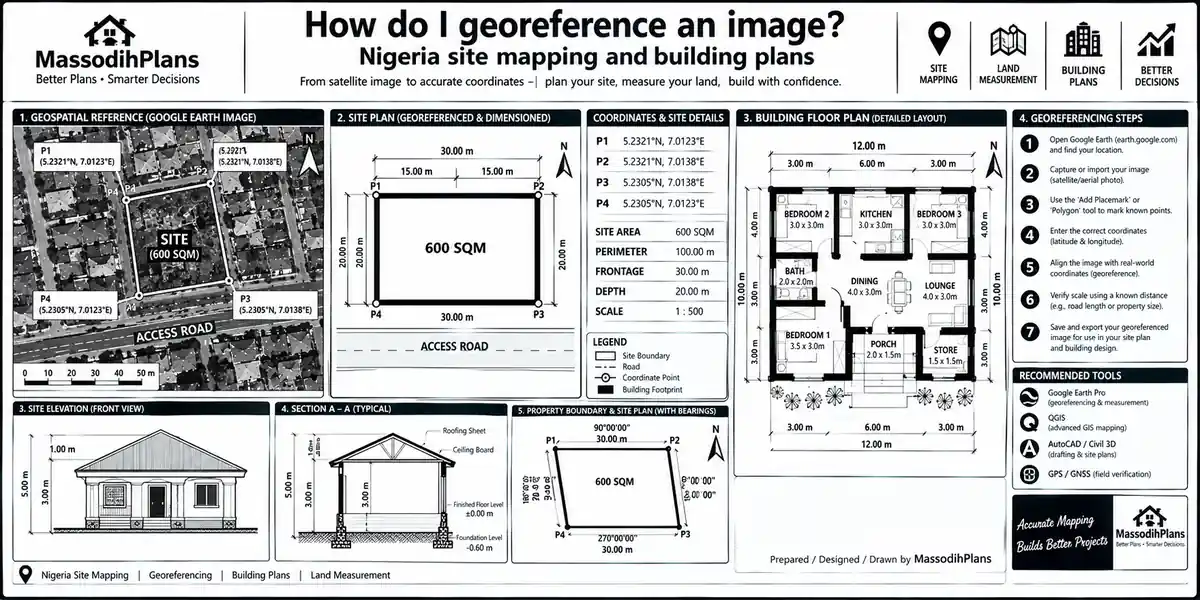
How do I georeference an image? Nigeria site mapping and building plans
Introduction to How Do I Georeference an Image? Complete Guide (QGIS, ArcGIS, Scanned Maps & Google Earth)
A client once sent me an old hand-drawn layout of his father’s land in a village outside Uyo, the kind of sketch an elderly surveyor drew by hand in the 1980s, and asked me, “Can you just put this on the computer and tell me the real boundary?” That single request turning a flat, placeless image into something a GIS system actually understands as sitting at specific coordinates on the earth is what georeferencing is. And it’s a question I get constantly, not just from clients with old land sketches, but from planning students trying to pass a GIS practical, surveyors digitizing old cadastral sheets, and diaspora clients trying to overlay a scanned site plan onto Google Earth before they commit money to a plot they haven’t physically seen.
So let’s actually answer it properly not as a generic software tutorial copied from a help menu, but the way I’d explain it to a student in a lecture hall, a client over the phone, or a friend who just downloaded QGIS for the first time and is staring at a blank canvas wondering why nothing lines up.
What Georeferencing Actually Means (In Plain Language)
Strip away the jargon, and georeferencing is simply the process of telling a flat image a scanned paper map, a satellite screenshot, a drone photo, an old survey sheet exactly where it sits on the real earth, using a recognized coordinate system. Before you georeference an image, it’s just a picture. A GIS program has no idea where in the world it belongs, how big it really is, or which way is north. After you georeference it, that same image becomes spatial data something you can measure, overlay, query, and trust alongside every other layer in your project.
Think of it like pinning a loose photograph onto a world map at the exact spot it belongs, except instead of one pin, you’re using multiple reference points to stretch, rotate, and scale the image until it fits the earth’s real geometry precisely. Those reference points have a name you’ll see constantly in every tool: Ground Control Points, or GCPs.
If you remember nothing else from this guide, remember this georeferencing is not about making an image “look” positioned correctly. It’s about mathematically transforming it so that every pixel sits where it truly belongs on the earth. “Close enough visually” and “accurately georeferenced” are two very different things, and the gap between them is where most beginner mistakes live.
Ground Control Points: The Real Foundation of Every Georeferenced Image
Before touching any software, understand this concept properly, because it’s the same whether you’re in QGIS, ArcGIS, or any other platform.
A Ground Control Point is a location you can identify both on your source image (the scanned map, the old photo, the satellite screenshot) and on a known, trusted reference a basemap, a set of real-world coordinates, or another already-georeferenced layer. You click the point on your image, then tell the software where that exact spot actually sits in the real world. Do this for several points across the image, and the software calculates a mathematical transformation that stretches and positions the entire image to match.
A few things experienced users know that beginners usually learn the hard way:
Spread your control points across the whole image, not clustered in one corner. Four points crammed into the top-left corner of a map will georeference that corner beautifully and distort everything far from it.
Pick points that are permanent and identifiable, not temporary. Road intersections, building corners, bridge centers, and survey beacons work. A parked car, a shadow, or a tree that might have been felled since the image was taken does not.
More points generally help, but only if they’re accurate. Four excellent, well-distributed points consistently outperform fifteen sloppy ones.
Check your Root Mean Square Error (RMSE) after adding points, not just before finishing. This number tells you how far off your transformation is, on average, and most GIS software displays it live as you add each point.
Now here’s the part almost every tutorial skips, and the part that connects directly to why this skill actually matters: once your image is properly georeferenced, you can legally and practically compare it against current satellite imagery, overlay it with an approved site plan, check it against a survey beacon coordinate, or use it as a base to digitize boundaries, roads, or drainage paths for an actual planning submission. An image that “just looks positioned” but isn’t mathematically accurate can quietly cost someone a boundary dispute, a rejected approval, or a drone survey that doesn’t match the ground truth.
How Do I Georeference an Image? The General Workflow (Before Picking Software)
Regardless of whether you end up using QGIS, ArcGIS, or anything else, the actual process follows the same five stages every time:
Load the source image into your GIS software as a raster layer.
Load a reference a basemap, satellite imagery, or another already-georeferenced layer you trust to compare against.
Add Ground Control Points, matching identifiable features on your image to their true coordinates on the reference.
Choose a transformation type (more on this below this is the part most guides gloss over, and it quietly determines your accuracy).
Run the transformation and save the output, usually as a new georeferenced file (commonly a GeoTIFF), which you can now use like any other spatial layer.
Understanding that sequence first means that whichever software you open QGIS this year, ArcGIS Pro next year, or whatever tool replaces both in a decade you’ll already know what you’re doing conceptually. Software menus change. This logic doesn’t.
With that foundation in place, let’s get specific, starting with the free, open-source option most students and self-taught planners reach for first.
Georeferencing in QGIS: Step by Step
QGIS remains the most accessible entry point for this skill worldwide, partly because it’s free and partly because its Georeferencer tool is genuinely well built once you understand how to use it.
Step 1: Open the Georeferencer
Go to Layer, then Georeferencer. If you don’t see it, it’s a core plugin that ships with QGIS by default in current versions, so check under Plugins, Manage and Install Plugins, and search “Georeferencer GDAL” if it’s somehow missing.
Step 2: Load Your Image
Inside the Georeferencer window, open your scanned map, satellite screenshot, or drone photo. It will appear exactly as it is flat, unpositioned, with no coordinate meaning yet.
Step 3: Add Control Points
Click a clearly identifiable point on your image, then enter its known coordinates (or click the equivalent location directly on a loaded reference map, if you have one open alongside it). Repeat this across at least four to six well-distributed points. QGIS shows you a running residual error for each point as you go a high residual on one specific point usually means you misclicked, or that point isn’t as reliable as you thought.
Step 4: Choose Your Transformation Type
This is the step every rushed tutorial skips past, and it matters enormously:
Linear/Helmert simple shift, scale, and rotation; useful mainly for quick, low-distortion images.
Polynomial 1 (Affine) handles uniform stretching and rotation; a solid default for reasonably well-scanned, flat maps with mild distortion.
Polynomial 2 or 3 handles more complex, non-uniform distortion, but needs more control points to stay reliable, and can actually warp an image incorrectly if you don’t have enough well-distributed points to support it.
Thin Plate Spline (TPS) forces every single control point to match exactly, which sounds ideal but can create unpredictable, localized warping in areas far from your control points if they’re not well spread out.
For most scanned paper maps and site layouts, Polynomial 1 with well-distributed points is the dependable starting choice. Reach for TPS only when you genuinely have heavy, irregular distortion (common in old, creased, or hand-drawn maps) and enough control points to support it.
Step 5: Set Your Target Coordinate Reference System (CRS)
Choose the CRS your project actually needs WGS 84 (EPSG:4326) is the safest universal default if you’re not sure, but if your country or project uses a specific local or projected system (UTM zones are common for site-scale accuracy), set that instead.
Step 6: Run and Save
Click the Start Georeferencing button (the settings gear lets you choose output file, resampling method, and whether to load the result directly into your main QGIS map). Once complete, you’ll have a proper georeferenced raster you can overlay, measure, and digitize from.
Before You Build Your Final Layer: Always check your total RMSE value before finalizing, not after you’ve already built other work on top of the output. A seemingly “good enough” image with a high RMSE will throw off every measurement, boundary, or digitized feature you create from it afterward and by then, the error has quietly spread into your entire dataset.
Let me be honest with you the way I would with my own students: the first time most people do this, they click four points in roughly the same corner because “it was easier to find landmarks there,” run the transformation, and then wonder why the opposite side of their map is sitting fifty metres off where it should be. I no go lie to you, that mistake don happen to almost everybody wey don try this thing before even some lecturers wey dey teach the course go still dey rush am reach that same corner mistake if dem no sharp. (Translation for readers outside Nigeria: I won’t lie to you — nearly everyone who’s tried this has made that exact mistake at least once, even some of the people teaching the course.) So spread your points out. Your future self, staring at a stretched map at 1am, will thank you.
Georeferencing in ArcGIS: Step by Step
ArcGIS (both ArcMap and the newer ArcGIS Pro) handles the same underlying logic with a slightly different interface, and it’s the standard many government agencies, large firms, and universities across the US, UK, Canada, Australia, and the Gulf region standardize on.
Step 1: Add Your Image to the Map
Bring your scanned map or image into your ArcGIS project as a raster layer, alongside a trusted reference layer (an existing georeferenced basemap, orthophoto, or known-coordinate dataset).
Step 2: Open the Georeferencing Toolbar/Ribbon
In ArcGIS Pro, this is under the Imagery tab, Georeference group. In older ArcMap, it’s the dedicated Georeferencing toolbar, usually enabled via Customize, Toolbars.
Step 3: Position the Image Roughly First
Unlike QGIS’s workflow, ArcGIS lets you manually shift, scale, and rotate the image into rough position before adding precise control points genuinely useful when your image is so far from its real position that finding matching features is otherwise difficult.
Step 4: Add Control Points
Use the Add Control Points tool to click a known point on your image, then click the matching true location on your reference layer. Repeat across well-distributed points, same principle as QGIS spread them out, choose permanent features, avoid clustering.
Step 5: Choose Your Transformation Type
ArcGIS offers the same transformation family first order (affine), second and third order (polynomial), spline, and adjust (rubber sheeting). Rubber sheeting deserves special mention here: it’s ArcGIS’s term for a more flexible, localized stretching method that can correct complex, irregular distortion without warping the entire image uniformly genuinely useful for old maps that were creased, torn, or scanned slightly skewed in different sections.
Step 6: Review Residuals and RMSE
ArcGIS displays a live table of residual error per control point and total RMSE as you work. Review it before finalizing a single wildly high residual usually means that one point is wrong, not that your whole transformation has failed.
Step 7: Update Georeferencing or Rectify
“Update Georeferencing” embeds the spatial reference directly without creating a new file (fast, but keep a backup of your original). “Rectify” creates a brand-new, permanently transformed output file generally the safer choice for anything you plan to share, submit, or build further work on top of.
Transitioning between the two platforms is rarely about which is “better” it’s about what you or your organization already has access to, and QGIS and ArcGIS actually read each other’s georeferenced outputs without much friction, which is reassuring if you’re collaborating across a team that uses both.
Georeferencing a Scanned Map: What’s Genuinely Different
A scanned paper map brings its own specific headaches that a clean digital satellite image doesn’t, and this is where most generic tutorials stay too vague to actually help.
Check for scan skew first. If the paper wasn’t perfectly flat on the scanner, your map may be very slightly rotated even before you start adding control points. A quick visual check against a known straight edge (a road, a grid line already printed on the map) catches this early.
Old maps often use a different, older datum. Many legacy survey sheets, especially older Nigerian, British colonial-era, and various national cadastral maps, were produced on local or historical datums rather than modern WGS 84. If your georeferenced result consistently sits a noticeable distance off true position even with good control points, a datum mismatch not a georeferencing mistake is often the real cause.
Use the map’s own printed grid as control points where available. Many older topographic and cadastral sheets have printed coordinate grid lines or tick marks specifically meant for this purpose these are usually more reliable than trying to match physical features that may have changed since the map was drawn.
Account for paper shrinkage and fold lines. Decades-old paper genuinely shrinks, stretches unevenly, and creases. This is precisely the scenario where a more flexible transformation (TPS in QGIS, Spline or Rubber Sheeting in ArcGIS) earns its place over a simple affine transformation.
When a client hands you a genuinely old scanned map and the coordinates “don’t feel right” even after careful control points, check the datum before you blame your control point selection. I’ve seen professionals spend an hour re-clicking points on a map that was never the problem the recorded datum was.
Georeferencing a Google Earth Image: What You Need to Know
This specific use case deserves its own section because so many people students doing assignments, landowners checking boundaries, self-builders scouting a plot remotely from abroad start here first.
A Google Earth screenshot is already, technically, roughly positioned it carries implicit location information because Google Earth itself is built on a known coordinate system. But a plain screenshot saved as an image file loses that embedded spatial reference the moment it becomes a flat picture. So yes, you still need to georeference it properly if you intend to use it as a precise working layer, not just a visual reference.
Practical approach:
Where possible, export directly from Google Earth Pro using its built-in “Save Image” with the correct extent and resolution settings, which preserves more positional accuracy than a plain screen capture.
If you only have a screenshot, georeference it the same way you would any other image — using recognizable, stable features (road intersections, distinctive building corners, permanent structures) matched against a current, trusted basemap inside QGIS or ArcGIS.
Because Google Earth imagery itself can shift slightly in registration over time and between update cycles, don’t treat it as an absolute ground truth for legal boundary work it’s excellent for site context, planning visuals, and general spatial analysis, but a proper survey remains the authority for anything with legal or construction-critical weight.
This matters globally, not just in Nigeria a diaspora client in Toronto, Berlin, or Dubai scouting land back home, a student in Reykjavik or Luxembourg doing a remote-sensing assignment on a location they’ve never physically visited, and a planning professional in Doha cross-checking an old concession boundary are all solving the exact same core problem: turning a flat picture into something spatially trustworthy.
Common Mistakes That Quietly Ruin Georeferencing Accuracy
Clustering control points in one area instead of spreading them across the full image
Choosing a transformation type that doesn’t match your distortion type using a simple affine transformation on a heavily warped old map, or an aggressive TPS transformation with too few points
Ignoring RMSE until the very end, instead of checking it as you add each point
Assuming every map uses WGS 84 without checking the original source’s actual datum
Using unstable or temporary features as control points anything that could plausibly have moved, been demolished, or changed since the image was captured
Overwriting the original file instead of saving the georeferenced output as a new file, losing your ability to redo the process if something goes wrong
Treating “visually aligned” as “accurately georeferenced” these are not the same thing, and only your RMSE and control point residuals tell you the truth
Make this mistake too many times in one semester, and your lecturer go just dey look you like say na only you sabi draw map wey no gree fit for its own country meanwhile na four control points for one corner cause the whole wahala. (Translation: your lecturer will look at you like you’ve drawn a map that somehow doesn’t fit its own country when really, it was just four control points crammed into one corner causing all the trouble.)
How to Check If Your Georeferencing Is Actually Accurate
Beyond watching RMSE during the process, a few practical checks after you’ve finished are worth building into habit:
Overlay your result against a completely independent reference not the same basemap you used for control points, if possible and visually scan for obvious misalignment at the edges.
Measure a known distance on your georeferenced output (between two features whose real-world distance you already know) and compare it to the measured result.
Check for consistent error direction. If every point is off in roughly the same direction and distance, that often points to a datum or projection mismatch rather than a control point problem.
Zoom to the edges and corners specifically, not just the center where most beginners cluster their control points distortion typically shows up worst at the extremities first.
Why This Skill Matters Beyond the Software (The Layer Most Guides Never Mention)
Here’s something worth saying plainly: georeferencing isn’t just a GIS software exercise it’s a trust exercise. Every time you georeference an old survey sheet, a client’s inherited land sketch, or a drone photo of a development site, you’re making a claim that this image now accurately represents where something sits on the actual earth. That claim gets used downstream for boundary decisions, planning submissions, drainage analysis, and sometimes genuine legal disputes between neighbours or family members over land.
That’s precisely why control point quality, transformation choice, and datum awareness aren’t academic fussiness they’re the difference between a georeferenced image you can defend professionally and one that quietly embeds an error someone discovers only after money has already changed hands or a foundation has already been poured. If you’re a student, this is the part worth genuinely understanding rather than memorizing for an exam. If you’re a professional or a serious self-builder, this is the part worth double-checking before you let a georeferenced layer anchor any real decision.
Frequently Asked Questions
What’s the minimum number of control points needed to georeference an image?
Technically, three points are the mathematical minimum for a basic affine transformation, but four to six well-distributed points is the practical, safer minimum for most real-world images, and more complex transformations need more points to stay reliable.
Can I georeference an image without any GIS software?
Some lightweight online tools and certain CAD programs offer basic georeferencing functions, but for genuine accuracy, control point management, and RMSE feedback, dedicated GIS software like QGIS or ArcGIS remains the reliable standard.
Is QGIS accurate enough for professional work, or do I need ArcGIS?
QGIS’s georeferencing engine is mathematically equivalent in rigor to ArcGIS’s accuracy comes from your control points and transformation choice, not the software brand. Many planning authorities, universities, and firms across the US, UK, Europe, and beyond use QGIS for exactly this reason: it’s free, open-source, and fully capable.
Why does my georeferenced image still look slightly off even after adding control points?
Usually one of three causes: control points clustered in one area, a transformation type that doesn’t suit your image’s distortion pattern, or a datum mismatch between your source image and your target coordinate system.
Can I georeference a Google Earth screenshot for a construction project?
Yes, for site context, visual planning, and general spatial analysis but treat it as a reference layer, not a legal survey. For anything boundary-critical or construction-critical, a proper ground survey remains the authoritative source.
Finally
Georeferencing an image isn’t difficult once you actually understand what’s happening underneath the menus you’re mathematically telling a flat picture exactly where it belongs on the real earth, using control points you trust and a transformation that matches your image’s distortion. Whether you’re a student finishing a GIS practical in Singapore, a planning professional cross-checking an old cadastral sheet in the UK, or a diaspora client scouting land back home from Toronto or Dubai, the same core discipline applies: spread your control points, match your transformation to your distortion, respect your datum, and never trust “it looks aligned” over your actual RMSE.
If you’re working through a site layout or old land document and need this done properly as part of a real project, our Services page outlines how we support clients with GIS, site analysis, and survey-backed planning work. Browse our Plans Library if you’re moving from land verification toward an actual building plan, or visit Plan School for more foundational planning and spatial-literacy guides like this one. You can also explore more GIS, planning, and architecture content on our Homepage. See also Lagos planning authority
- How Do I Download Google Earth Imagery? Nigerian Site Mapping for Buildings
- How Do I Get Free Satellite Imagery? for Nigerian Building and Site Mapping
- How Do I Fix the Coordinate System? GIS Layer Alignment for Site Plans Fast
- Why Are My GIS Layers Not Aligning? — GIS Fixes for Building Site Plan Maps
- Why Is My GIS Map Not Showing Correctly? (Real Fixes That Actually Work)
Author
Massodih Okon is a Nigerian built-environment professional with academic and professional experience in urban and regional planning, geography, architectural design, Landscape Design, GIS and land development.
He holds a Master’s degree in Urban and Regional Planning from the University of Uyo and a first degree in Geography and Regional Planning.
Through MassodihPlans, he publishes practical guides on Nigerian house plans, building design, physical planning, site planning, development approval and residential construction. Read the full author profile →