google earth to gis massodihplans
A student sent me a KML file last month. He had digitized his project area boundary in Google Earth clean, neat, looked perfect on screen. He imported it into QGIS for his final year project, and three of his polygons vanished. Not an error message. Not a warning. Just gone, like they never existed.
That’s the conversation this article is actually built around, not a generic “here’s how to click Save As” tutorial. If you search this topic right now, you’ll find videos telling you to open a tool and press a button. What almost none of them tell you is why the button sometimes fails, why your boundary area calculates wrong after conversion, or why a client’s inherited family land, mapped on Google Earth, can be dangerously misleading in a courtroom. We’re covering all of that here.
Why People Actually Need to Convert Google Earth Data to GIS
Before the how, it’s worth being honest about the who and why, because the method you should use depends on your actual situation.
Land surveyors and town planners use it to bring a client’s rough Google Earth boundary sketch into proper GIS software for site analysis, setback checks, and layout design
Diaspora clients (and I get this often from Nigerians abroad) mark out inherited family land on Google Earth and want it converted into something a surveyor or planner can actually work with
Students digitize study areas in Google Earth for dissertations and need shapefiles for spatial analysis in QGIS or ArcGIS
Estate developers sketch proposed layouts in Google Earth first because it’s familiar, then need the data in proper GIS format for subdivision and infrastructure planning
Environmental and conservation researchers map habitat or project boundaries in the field using the Google Earth app, then convert for formal analysis
Disaster and flood-risk teams mark affected zones quickly in Google Earth during an emergency, then need that data in GIS to overlay against hazard maps
Notice the pattern: Google Earth is almost always the easy, familiar starting point, and GIS software is where the real analytical work happens. Converting between them is the bridge, and that bridge has more cracks in it than most tutorials admit.
Before converting anything, ask yourself what the data will be used for next. A boundary that’s “good enough” for a presentation to a client is not automatically good enough for a legal land dispute or a construction setback calculation. We’ll come back to this distinction, because it matters more than the software you choose.
First, Understand What You’re Actually Converting Between
This is where most guides jump straight into software clicks without explaining the file types themselves, and that’s exactly where confusion starts.
KML (Keyhole Markup Language) is a plain-text, XML-based file format that Google Earth uses to store points, lines, polygons, and their styling (colours, icons, labels). It’s readable, lightweight, and was actually built for displaying geographic data, not analyzing it.
KMZ is simply a zipped (compressed) KML file, often bundling in icons or images used in the map. If someone sends you a KMZ, it’s a KML wearing a jacket unzip it, and you’ll usually find a .kml file inside, sometimes alongside an image folder.
Shapefile (.shp) is the long-standing GIS industry standard format, actually made up of several files working together (.shp, .shx, .dbf, and others) that store geometry and attribute data separately. This is the format QGIS, ArcGIS, and most professional GIS workflows expect as a baseline.
The critical thing most tutorials skip: a shapefile can only hold one geometry type per file all points, all lines, or all polygons, never mixed. A KML file has no such restriction; you can freely mix a point, a line, and a polygon in the same file. This single difference is the number one reason conversions “lose data” without any error message, and we’ll unpack exactly how to handle it in the troubleshooting section ahead.
Now that you know what you’re actually working with, let’s get into the two main conversion paths QGIS and ArcGIS starting with the free option most people should learn first.
How to Convert Google Earth to QGIS (Step-by-Step)
QGIS is free, open-source, and genuinely powerful enough for professional town planning and surveying work which is exactly why I recommend it to most students and independent practitioners before they ever consider a paid ArcGIS license.
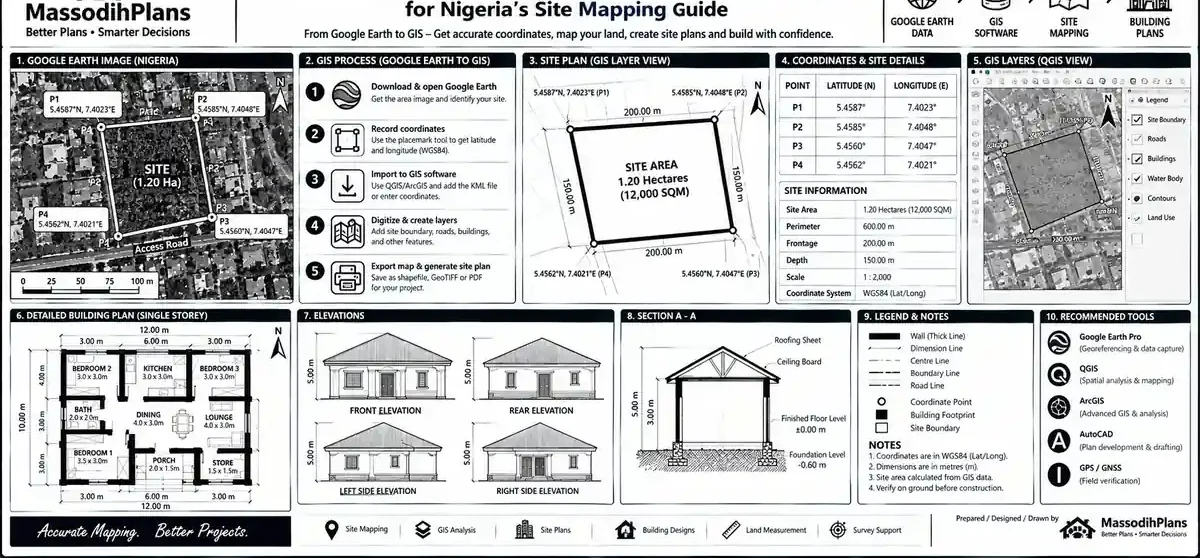
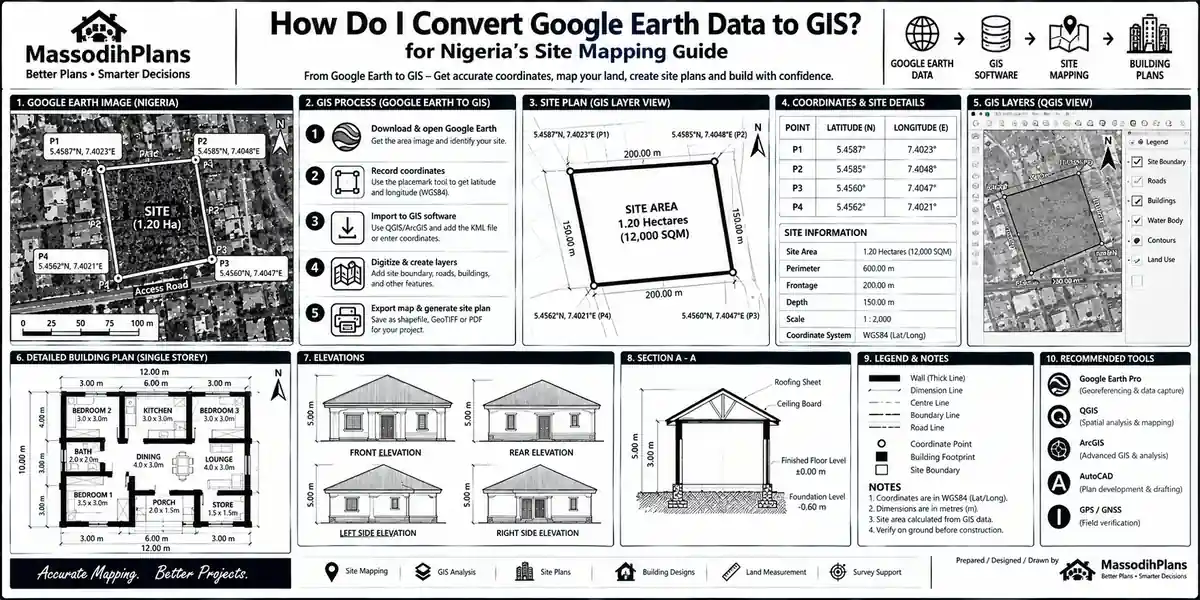
Export your Google Earth data as KML or KMZ. In Google Earth, right-click the folder or placemark in “My Places,” select Save Place As, and choose .kml or .kmz.
Open QGIS and go to Layer → Add Layer → Add Vector Layer.
Browse to your KML/KMZ file and select it. QGIS reads both formats natively no conversion needed just to view it.
Check the Layers panel. If your file contains mixed geometry (points, lines, and polygons together), QGIS may load it as multiple sub-layers, one per geometry type. This is normal it’s QGIS quietly doing the separation a shapefile will eventually require anyway.
Right-click the layer you want to convert → Export → Save Features As.
Choose “ESRI Shapefile” as the format, set your Coordinate Reference System (don’t skip this see the CRS section just ahead), name your output file, and save.
Repeat for each geometry type if your original KML had mixed data, since each needs its own shapefile.
That’s the clean version. In the real world, step 6 is where most people get tripped up, because the CRS dropdown looks like a formality and isn’t.
How to Convert Google Earth to ArcGIS (Step-by-Step)
If your organization already runs ArcGIS Pro, the workflow is similarly direct, with one Esri-specific tool worth knowing by name.
- Export your Google Earth file as KML or KMZ, same as above.
- Open ArcGIS Pro and go to the Analysis tab → Tools, then search for “KML To Layer.”
- Run the KML To Layer tool, pointing it to your .kml or .kmz file and choosing an output location.
- ArcGIS will generate a file geodatabase containing separate feature classes for points, lines, and polygons automatically this is actually a nicer behaviour than the manual separation QGIS sometimes requires.
- Right-click each feature class → Data → Export Features, and choose Shapefile as the output type if you specifically need .shp rather than a geodatabase feature class.
- Set your output coordinate system during export again, don’t default this blindly.
If you don’t have ArcGIS Pro licensed, ArcGIS Online and even older ArcMap installations support KML-to-layer conversion through similar named tools, so the concept transfers even if your exact menu path looks slightly different.
Both paths get you to a shapefile. Where they differ, and where most real-world frustration actually happens, is what comes next and this is the layer almost nobody writing about this topic actually explains properly.
The Coordinate Reference System (CRS) Problem Nobody Warns You About
Here’s something that trips up far more people than a missing button: Google Earth stores all its data in WGS 84 geographic coordinates (latitude/longitude, EPSG:4326). That’s a global reference system fine for display, but not ideal for accurate area, distance, or setback measurements, because it isn’t a flat, measurable grid.
When you convert to a shapefile and your GIS software asks for a coordinate system, choosing the wrong one or blindly keeping WGS 84 for serious analysis means your area calculations, boundary measurements, and overlay accuracy will be subtly wrong. Not obviously broken. Just quietly, dangerously imprecise, which is worse, because nobody catches it until a disputed land measurement or an inaccurate site plan is already in someone’s hands.
For serious work, you want to project your data into a local, metre-based coordinate system appropriate to where the land actually is. Here’s a practical starting-point table, since this audience spans several countries:
- Nigeria: Minna Datum, Nigeria UTM zones (31N/32N/33N depending on region)
- United States: Relevant State Plane Coordinate System, or UTM zone for broader analysis
- United Kingdom: OSGB36 / British National Grid (EPSG:27700)
- Canada: NAD83 UTM zone matching the province
- Germany & Switzerland: ETRS89 / UTM zone 32N, or national grid equivalents
- UAE & Qatar: UTM zone 39N/40N (WGS 84 based)
- Australia: GDA2020 MGA zone matching the state
- Singapore: SVY21 (EPSG:3414)
- Iceland & Luxembourg: ETRS89 / UTM zone 27N–32N depending on exact location
Before You Build On This Data: If you’re converting Google Earth data for anything involving legal boundaries, construction setbacks, or land disputes, confirm the correct local coordinate system with a licensed surveyor or your national mapping agency before relying on the output. A wrongly projected shapefile can look perfectly fine on screen and still be measurably wrong on the ground.
Now, I promised this wasn’t going to read like every other dry GIS tutorial, so let’s pause here for a second. If you’ve ever sat through a GIS class where the lecturer spent forty minutes on coordinate systems and you still left confused abeg, you are not alone. As we Naija people go say, “if CRS be person, e go dey find wetin dey disturb your peace sotey you go forget say na just numbers.” Projection wahala has confused better students than you. Take a breath, and let’s continue because the next part is where things actually start breaking in practice, and that’s more useful to understand than to fear.
Common Conversion Errors and How to Actually Fix Them
This is the section that should exist on every “convert Google Earth to GIS” article and somehow doesn’t. Here’s what actually goes wrong, and why.
Problem: Some features disappear after conversion.
Cause: Mixed geometry types in one KML file. A shapefile cannot store points, lines, and polygons together if your software silently drops some features instead of separating them into multiple files, that’s the cause. Fix: Export each geometry type to its own shapefile, as shown in the QGIS and ArcGIS steps above.
Problem: Attribute field names get cut off or renamed strangely.
Cause: The shapefile’s attribute table format (.dbf) limits field names to 10 characters. A field called “ConstructionYear” becomes “Construct” or similar after conversion. Fix: Rename important fields to something meaningful within 10 characters before exporting, or keep a reference document mapping old names to new ones.
Problem: Polygon areas calculate incorrectly after conversion.
Cause: Almost always a coordinate system issue data left in WGS 84 geographic coordinates instead of being projected into a proper metre-based system, as covered above.
Problem: Styling, colours, and icons disappear.
Cause: Shapefiles don’t store visual styling the way KML does that information simply has no home in the shapefile format. Fix: If presentation styling matters, keep your original KML as a separate display copy, and treat the shapefile purely as your analytical dataset.
Problem: QGIS or ArcGIS throws a “self-intersecting geometry” or “invalid geometry” error.
Cause: Polygons digitized by hand in Google Earth (especially on a phone) can accidentally create a figure-eight shape where the boundary line crosses itself. Fix: In QGIS, use Vector → Geometry Tools → Fix Geometries before exporting; in ArcGIS, use the Repair Geometry tool.
Problem: Nothing happens when you try to open a KMZ directly in some older software.
Cause: Some older GIS tools only read .kml, not the zipped .kmz wrapper. Fix: Rename the .kmz extension to .zip, extract it, and you’ll find the .kml file inside to work with directly.
Once your geometry is clean and your coordinate system is correct, there’s one more layer worth understanding before you trust the output for anything important and it has nothing to do with software at all.
The Accuracy Layer Nobody Talks About: Is Google Earth Data Good Enough?
This is, candidly, the part I care most about as a town planner, and the part almost no GIS tutorial addresses honestly, because tutorial writers are usually software trainers, not land professionals.
Google Earth’s satellite imagery is not continuously updated the imagery underneath a given location can be months or, in less-monitored areas, several years old. A boundary you trace against that imagery is only as current and accurate as the picture itself, and positional accuracy of the underlying imagery can be off by a meaningful number of metres depending on the source and location, which almost never matches the precision of an actual cadastral or beacon survey.
This matters enormously for a few real situations I see repeatedly:
- A diaspora client traces inherited family land on Google Earth and treats that boundary as legally reliable — it isn’t, on its own
- A developer uses a Google Earth–derived shapefile directly for a construction setback calculation that needs centimetre-level accuracy
- Two neighbours each trace “their” boundary on Google Earth and end up with two different lines, because tracing by eye against satellite imagery is inherently imprecise
Before You Build On This Data: Google Earth data converted to GIS is excellent for planning, visualization, preliminary site analysis, and communicating ideas it is not a substitute for a professional ground survey when legal boundaries, land disputes, or construction setbacks are involved. If your project touches any of those, the converted shapefile should be a starting reference point for a licensed surveyor, not the final word.
This is also, if I’m honest, where half the land disputes I get called into as a town planner actually start two parties both trusting a Google Earth trace a little further than it was ever built to be trusted. Pardon my small lecture-hall tone there; as my students for sure sabi, I no fit gree una comot from class without at least one serious warning like that.
Converting KML to Shapefile: The Quick Reference
If you came here specifically searching “convert KML to shapefile” and don’t need the full walkthrough again, here’s the condensed version:
In QGIS: Add the KML as a vector layer → right-click → Export → Save Features As → choose ESRI Shapefile → set your CRS → save
In ArcGIS: Run the KML To Layer tool → export the resulting feature class as a shapefile → set your CRS during export
Using free online converters (such as browser-based KML-to-SHP tools): upload your file and download the result fast, but see the privacy warning below before you use one for sensitive boundary data
Using GDAL (for the technically inclined or anyone scripting a batch job): the ogr2ogr command-line tool converts KML to shapefile in a single line ogr2ogr -f "ESRI Shapefile" output.shp input.kml and is especially useful when you need to convert dozens of files at once rather than one at a time through a GUI
Converting KMZ to Shapefile: What’s Actually Different
Functionally, almost nothing both QGIS and ArcGIS read .kmz directly without you needing to manually unzip it first in most cases. The one practical difference worth knowing: if your KMZ contains embedded images (photo overlays, custom icons), those won’t carry into the shapefile at all, since shapefiles have no mechanism for storing embedded media. If those images matter for your project, extract them separately from the KMZ (by renaming it to .zip and opening it) and keep them as a linked reference alongside your shapefile, rather than assuming they travelled with the conversion.
Batch Converting Multiple Google Earth Files at Once
If you’re handling more than a handful of files a planning office processing many community-submitted land sketches, for instance converting one at a time through a GUI becomes genuinely impractical. Two practical routes:
QGIS’s built-in Batch Processing tool (search for it in the Processing Toolbox) lets you point to a whole folder of KML files and export them all to shapefiles in one run with consistent settings, including CRS.
A simple script using GDAL’s ogr2ogr, looped over a folder of files, is the fastest route if you’re comfortable with basic command-line use, and scales to hundreds of files without manual repetition.
Going the Other Way: GIS Shapefile Back to Google Earth
This direction gets almost no coverage anywhere, and it’s genuinely useful in professional practice. Once you’ve done serious analysis in QGIS or ArcGIS, you often need to present the result to a client or community member who has never opened GIS software in their life but everyone can open Google Earth.
In QGIS: right-click your shapefile layer → Export → Save Features As → choose “Keyhole Markup Language (KML)” as the format
In ArcGIS: use the “Layer To KML” tool, pointing it to your feature class or shapefile
This workflow analyze in GIS, present in Google Earth is, in my experience, one of the most underused tricks for actually communicating technical planning findings to non-technical stakeholders, and it belongs in this guide as much as the forward conversion does.
Free Tools vs. Paid Tools vs. Online Converters: A Practical Comparison
QGIS: Free, open-source, handles everything covered in this guide, and is genuinely capable enough for professional town planning and surveying work. My default recommendation for students and most independent practitioners.
ArcGIS Pro: Paid (with free trial and student licensing options through many universities), has a more polished interface and some workflow conveniences, and is the standard in many government and corporate GIS departments worth learning if your employer or institution already uses it.
Browser-based online converters: Fast and convenient for a one-off, non-sensitive file, but think twice before uploading land boundary data tied to a real client, a legal matter, or anything confidential you genuinely don’t know where that data is stored once it leaves your machine. For anything beyond a casual test file, QGIS costs you nothing and keeps your data local.
Mobile tools (Google Earth app, Google My Maps): Useful for quick field digitization on a phone when you’re physically walking a site, with conversion to shapefile handled afterward on a desktop using the steps above.
For any client-related land data, do the conversion locally in QGIS rather than through a random online converter. It costs you nothing extra, and it means a client’s boundary coordinates never leave your own machine.
Frequently Asked Questions
Can I convert Google Earth data to GIS without any software installed?
Yes, through browser-based online KML-to-shapefile converters, but see the privacy consideration above before using one for sensitive or client-related land data.
Why does my shapefile show the wrong area after converting from Google Earth?
Almost always because the data is still in WGS 84 geographic coordinates rather than projected into a local, metre-based coordinate system covered in detail in the CRS section above.
Is KMZ the same as KML?
A KMZ is a compressed (zipped) KML file, often bundling extra images or icons. Rename it to .zip and extract it to access the .kml file directly if your software doesn’t read .kmz natively.
Can I use Google Earth data as a legal land boundary?
Not on its own. Google Earth imagery has positional accuracy limits and isn’t continuously updated, so converted data should be treated as a planning reference, not a substitute for a professional ground survey, especially for legal boundaries or disputes.
Which is better for converting Google Earth data — QGIS or ArcGIS?
QGIS is free and fully capable for this task, making it the practical default for students and independent practitioners. ArcGIS is worth using if your organization already has it licensed, offering a somewhat smoother interface and automatic geometry-type separation during KML import.
Finally
Converting Google Earth data to GIS isn’t really about which button to click it’s about understanding what each format can and can’t hold, projecting your data correctly, cleaning up the geometry errors that come from hand-digitized boundaries, and being honest about the accuracy limits of what you started with. Get those four things right, and the software steps become the easy part.
If you’re working with land data for an actual building project, estate layout, or site plan not just a class assignment that’s exactly where proper spatial analysis needs to meet professional town planning judgment. Our [Services] page outlines how we support clients with site planning and layout work that goes beyond a Google Earth trace. Browse our Plans Library for house and estate designs already grounded in real site conditions, or visit Plan School to build your understanding of the planning and approval process this kind of data eventually feeds into. You can also explore more architecture, planning, and GIS guides on our Homepage.
- How do I georeference an image? Nigeria site mapping and building plans
- How Do I Download Google Earth Imagery? Nigerian Site Mapping for Buildings
- How Do I Get Free Satellite Imagery? for Nigerian Building and Site Mapping
- How Do I Fix the Coordinate System? GIS Layer Alignment for Site Plans Fast
- Why Are My GIS Layers Not Aligning? — GIS Fixes for Building Site Plan Maps
Author
Massodih Okon is a Nigerian built-environment professional with academic and professional experience in urban and regional planning, geography, architectural design, Landscape Design, GIS and land development.
He holds a Master’s degree in Urban and Regional Planning from the University of Uyo and a first degree in Geography and Regional Planning.
Through MassodihPlans, he publishes practical guides on Nigerian house plans, building design, physical planning, site planning, development approval and residential construction. Read the full author profile →