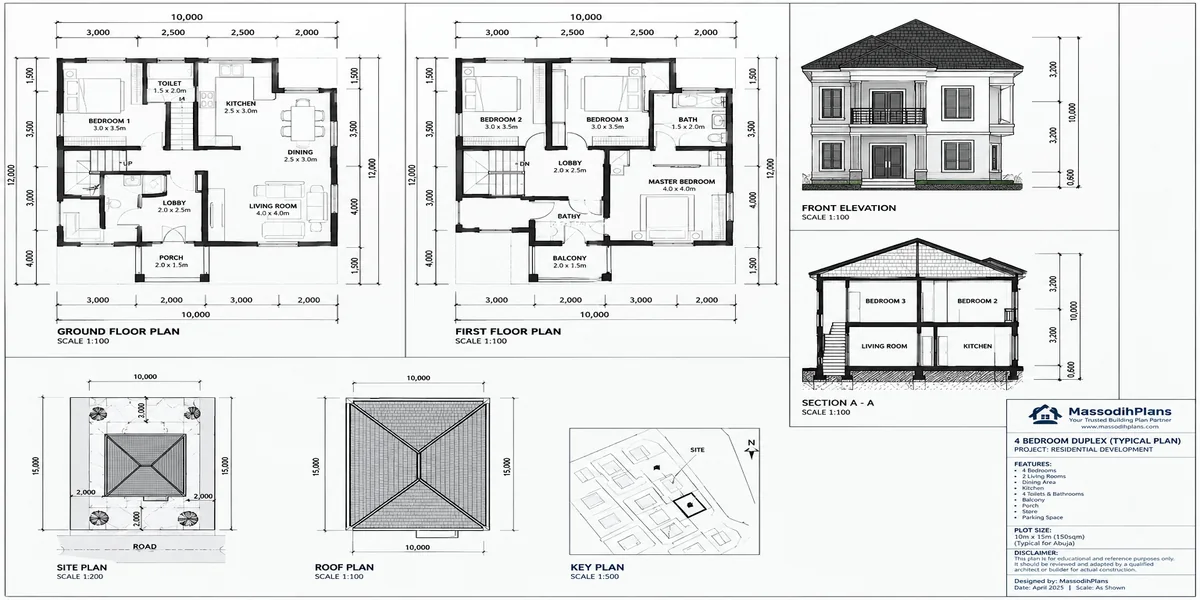
How Do I Convert CAD Drawings to GIS? GIS for Land-Site Planning in Nigeria
A student of mine once sent me a DWG file at past 11pm with a message that just said “sir, I don overlay this thing on QGIS, everything don scatter.” The building outline he’d exported from AutoCAD had landed somewhere in the middle of the Atlantic Ocean, rotated sideways, at a scale that made a four-bedroom bungalow look like it could swallow a whole local government. He wasn’t doing anything wrong, exactly he just didn’t know what nobody had told him: CAD and GIS are not the same kind of file wearing different clothes. They’re two completely different ways of thinking about space, and converting between them properly means understanding that difference, not just clicking “export.”
That’s what this piece is actually about. Not another button-by-button screenshot tour you’ll find twenty of those already ranking, and I’ll point you to the mechanics too but the layer underneath the mechanics that actually explains why conversions go wrong, how to fix them, and how to take it further than a simple shapefile into something you can genuinely call a GIS building plan.
Why CAD and GIS Don’t Speak the Same Language (Even Though They Look Similar)
Before touching any software, get this concept settled, because it explains almost every conversion headache you’ll ever run into.
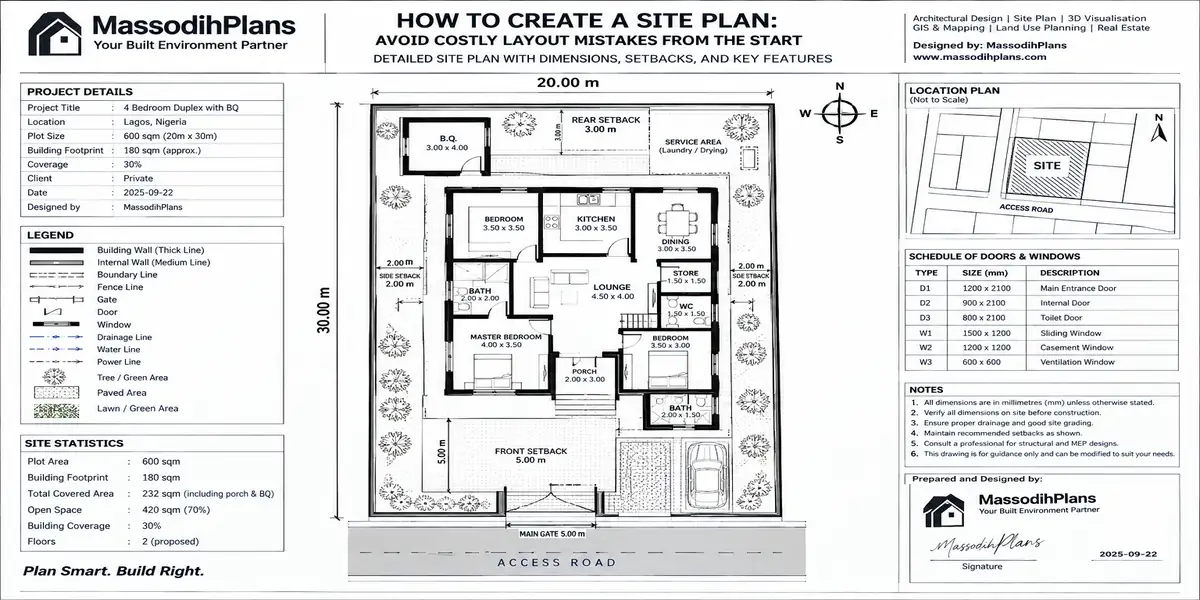
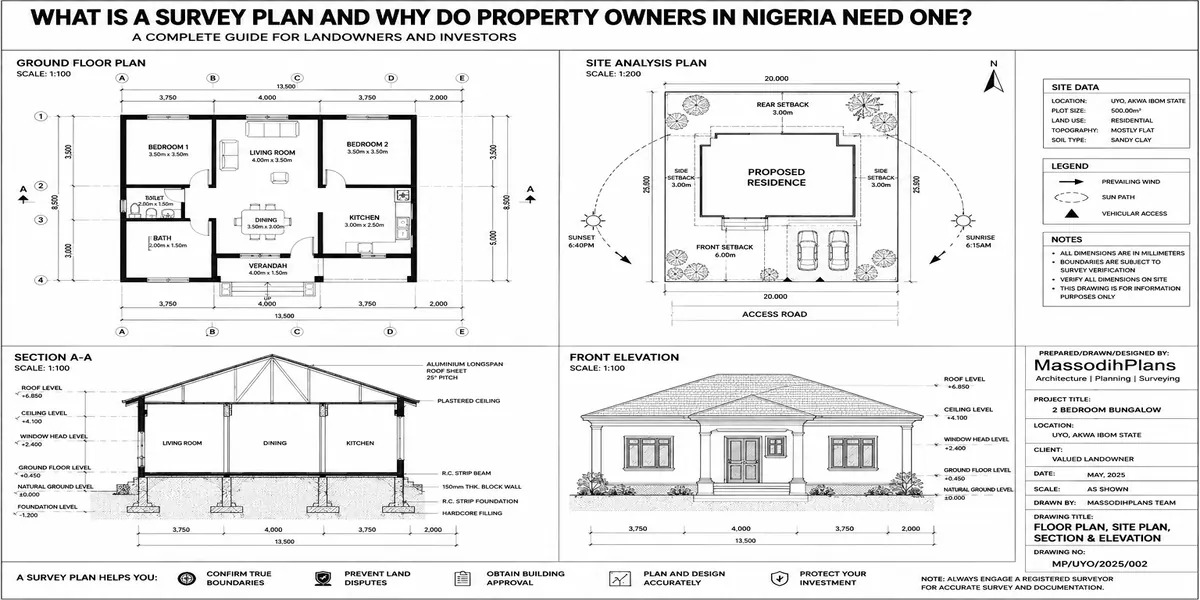
A CAD drawing your DWG or DXF file from AutoCAD, Revit, or ArchiCAD is built around relative position. Your building is drawn at coordinate (0,0) because that’s convenient for drafting, not because it has any relationship to the real Earth. Layers in CAD are organized for visual clarity “Walls,” “Dimensions,” “Hatching,” “Text” not for data meaning. A wall is a line. It doesn’t know it’s a wall; it just looks like one to you.
A GIS file a shapefile, a GeoPackage, a feature class is built around absolute geographic position. Every feature carries a real-world coordinate reference system (CRS), tying it to an actual spot on the planet. And critically, every feature can carry attributes a wall in GIS isn’t just a line, it can be a line that knows it’s “Wall, Block A, Plot 14, Material: Sandcrete, Height: 3.2m.”
So when you “convert CAD to GIS,” you’re not just changing a file extension. You’re trying to take something that only knows relative drawing space and give it real-world geographic meaning and structured data. That’s the whole game. Miss this, and you’ll keep fighting symptoms wrong location, wrong scale, missing attributes without understanding the actual disease.
Anytime a conversion “looks wrong,” ask yourself first: is this a coordinate system problem, a units problem, or a data-structure problem? Ninety percent of CAD-to-GIS complaints fall into one of those three buckets, and knowing which one you’re dealing with cuts your troubleshooting time by more than half.
Fix It in CAD First: The Cleanup Step Everyone Skips
Most conversion disasters are actually baked in before you ever open QGIS or ArcGIS. A few minutes of cleanup in your CAD software saves hours of frustration downstream.
Confirm your drawing units. A drawing set up in millimetres versus one set up in metres will convert to wildly different real-world sizes if the importing software assumes the wrong one. Check this before export, not after your building looks like a shoebox or a stadium.
Close your polylines. A building outline that looks closed on screen but has a tiny gap at one corner will often import as a line, not a polygon and a line can’t hold area, can’t be used for building footprint analysis, and won’t behave like a proper feature in GIS.
Strip out layers you don’t need
Strip out layers you don’t need. Dimension lines, text annotations, hatching patterns, and title blocks rarely need to travel into GIS. Converting everything indiscriminately gives you a cluttered mess of thousands of meaningless features mixed in with the data you actually want.
Separate your layers by feature type, not by drafting convenience. If “walls,” “doors,” and “windows” are all dumped on one layer for drawing speed, split them before export GIS treats each layer as a separate dataset, and tangled layers become tangled GIS data.
Assign (or at least note) a coordinate system, if your drawing was ever set out using real survey coordinates. Many architectural drawings are drafted in arbitrary local coordinates with no real-world tie at all which is fine for building the house, but means you’ll need to georeference it manually later (we’ll get to that).
Some of una dey draw for years, your dimension layer get like 400 text objects wey no concern anybody, but the one closed polyline wey go save your life, you no fit close am. Abeg, close your polygons o QGIS no be Holy Ghost wey go close am for you.
AutoCAD to GIS: Understanding Your Starting Format
Most of this journey begins in AutoCAD, so let’s be precise about what you’re actually exporting.
DWG is AutoCAD’s native binary format. It’s dense, it preserves more AutoCAD-specific information (like certain object types and styles), but it’s proprietary meaning tools outside the Autodesk ecosystem sometimes interpret it slightly differently. Most current GIS software can read DWG directly now, which has genuinely simplified this workflow compared to a few years ago.
DXF (Drawing Exchange Format) is AutoCAD’s open, plain-text interchange format, specifically built so that non-Autodesk software could read CAD data reliably. It’s often the safer bridge when you’re moving between very different software ecosystems, because it sacrifices some AutoCAD-specific richness in exchange for broader compatibility.
If you’re exporting from AutoCAD specifically for a GIS destination, export to DXF when you want maximum compatibility and predictable behaviour, and keep DWG when you’re confident your GIS software (most current QGIS and ArcGIS versions) handles it natively and you want to preserve more of the original drawing’s detail.
DWG to Shapefile: The QGIS Method
This is the core mechanic most people are actually asking for, so here it is cleanly, plus the troubleshooting layer competitors skip.
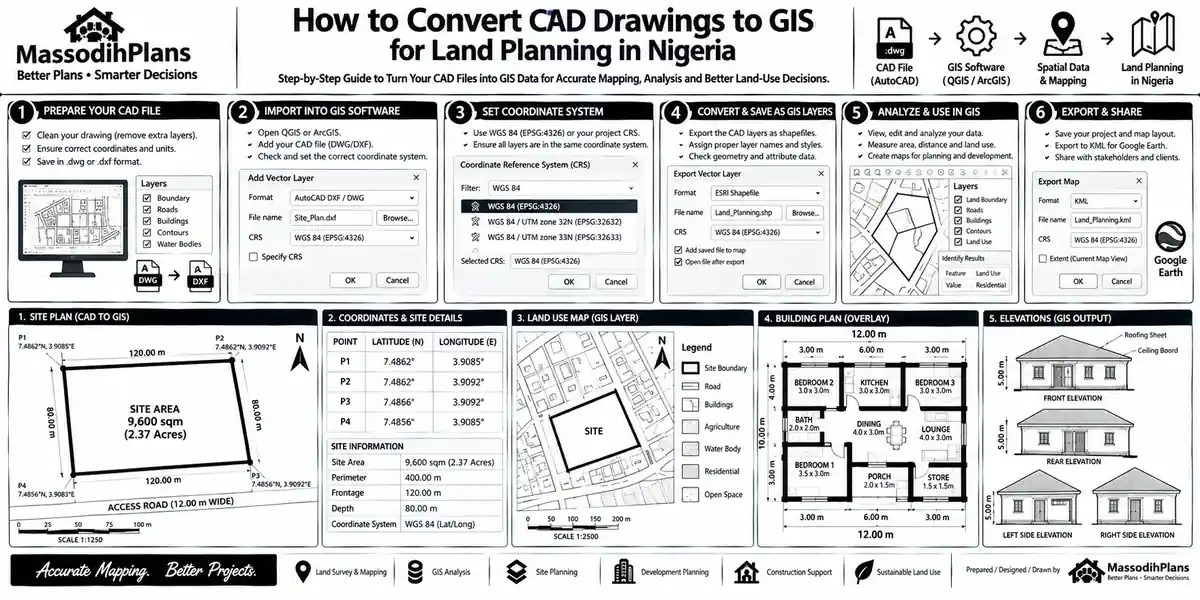
- Open QGIS and go to Project > Import/Export > Import Layers from DWG/DXF
- Select your source DWG file
- Set the CRS if your drawing has real-world coordinates, specify the correct one; if it’s in arbitrary local coordinates, note that you’ll georeference afterward
- QGIS imports the data into a GeoPackage container first (this is a QGIS requirement, not optional) you’ll see your CAD layers appear in the Layers panel, separated by their original CAD layer names
- Right-click the layer you actually need (say, your building outline layer), choose Export > Save Features As
- Choose ESRI Shapefile as the format, set your output location, and confirm the CRS again at this step
- Repeat for each individual CAD layer you need as a separate shapefile a DWG rarely converts cleanly as “one shapefile,” because a CAD drawing usually contains multiple feature types (lines, polygons, points, text) that need separating
Before You Build or in this case, Before You Convert): A shapefile can only hold one geometry type per file points, lines, or polygons, never mixed. If your CAD layer mixes geometry types (common with architectural layers that combine wall lines with door-opening points, for instance), you’ll need to split them before exporting, or the conversion will silently drop or misclassify some features.
DXF to Shapefile: What’s Actually Different
The mechanical steps for DXF are nearly identical to DWG in QGIS same import dialog, same GeoPackage intermediate step, same shapefile export at the end. The practical difference shows up in reliability, not process:
DXF files tend to import more predictably across different software versions, since the format itself is openly documented rather than reverse-engineered
DXF files can be significantly larger than an equivalent DWG, because the format is plain text rather than compressed binary
Some advanced AutoCAD objects (certain dynamic blocks, specific annotation styles) may simplify or lose some properties when saved to DXF, which rarely matters for GIS purposes since GIS doesn’t use those CAD-specific object types anyway
If your DWG-to-shapefile conversion is behaving oddly layers missing, geometry distorted, software crashing on import exporting to DXF from AutoCAD first and converting that instead is a genuinely useful troubleshooting step, not just an alternative preference.
DXF be like that friend wey go translate everything for you for layman’s term before you enter meeting. DWG na the original gist wey get big big grammar; DXF don already simplify am so everybody fit understand. If your DWG dey do “aristo,” try DXF make e humble am small.
CAD to QGIS: Beyond the Basic Import
Since QGIS is free and genuinely capable, it’s worth knowing a few things that take you from “it imported” to “it’s actually usable.”
Use the CAD to GIS Converter plugin where your project involves preserving CAD blocks as proper merged instances, reprojecting on the fly, and auto-generating PRJ files install it through the QGIS Plugin Manager rather than doing everything manually for large, complex drawings.
Save to GeoPackage, not shapefile, if you’re staying inside QGIS long-term. Shapefiles have real limitations a 10-character field name limit, the single-geometry-type restriction mentioned above, and multiple companion files that can get separated and corrupt the dataset. GeoPackage avoids all three and is the better long-term format if nothing downstream specifically requires a shapefile.
Check your attribute table after import. CAD text objects sometimes convert into GIS points with the text stored as an attribute, rather than becoming a proper labelled field this is worth verifying rather than assuming the conversion “just worked.”
CAD to ArcGIS: The Esri Workflow
If your organization standardizes on Esri tools, the logic is the same, the menu names differ.
In ArcGIS Pro:
- Open the Geoprocessing pane and search for CAD to Geodatabase
- Select your input CAD dataset (DWG, DXF, or even DGN — ArcGIS Pro accepts data generated by AutoCAD and MicroStation-based applications)
- Define the output geodatabase and feature dataset location
- Run the tool ArcGIS Pro will generate feature classes for points, lines, polygons, and annotation, generally organized by your original CAD layers
- From there, export individual feature classes to shapefile if that specific format is required downstream, since ArcGIS Pro’s native and more capable format is the geodatabase, not the shapefile
A note on older ArcMap workflows: if you’re still on ArcMap rather than ArcGIS Pro, the same CAD to Geodatabase tool exists in ArcToolbox under Conversion Tools, and the process is functionally identical, just inside an older interface.
One real practical difference worth knowing: ArcGIS Pro’s CAD to GeoDatabase conversion tends to retain more structured attribute information automatically than a straight shapefile export in QGIS does, which matters if your end goal is a database-rich GIS building plan rather than just a visual outline.
Georeferencing: The Step Almost Every Tutorial Skips
Here’s the part that trips up more people than the actual file conversion: your CAD drawing may have no relationship to real-world coordinates at all. Converting the file format doesn’t fix this it just moves your correctly-shaped, wrongly-located building into a GIS format that’s equally wrongly located.
If your original survey had real coordinates, make sure you specify that CRS at import, and the location problem never arises. If it didn’t which is common for architectural drawings drafted purely for construction purposes you need to georeference the output manually:
Identify at least 2-3 known real-world reference points that also exist in your CAD drawing (a plot corner with known survey coordinates, a road intersection, a visible boundary beacon)
Use your GIS software’s georeferencing tool to match those points between your imported CAD layer and a real-world basemap or coordinate set
Apply the transformation and verify the result sits correctly against satellite imagery or an existing authoritative layer before trusting it for any real decision-making
Since this platform reaches readers well beyond Nigeria, here’s a quick reference for the coordinate reference systems you’ll commonly encounter by region when doing this:
- Nigeria — Minna Datum / Nigeria UTM zones (31N/32N/33N depending on location)
- United States — State Plane Coordinate Systems (varies by state) or UTM/NAD83
- United Kingdom — OSGB36 / British National Grid
- Germany — ETRS89 / UTM zones 32N-33N
- UAE & Qatar — UTM Zone 39N/40N
- Switzerland — CH1903+ / LV95
- Iceland — ISN93
- Luxembourg — LUREF
- Canada — NAD83 / UTM or provincial systems
- Australia — GDA2020 / MGA zones
- Singapore — SVY21
Get this wrong, and every downstream step area calculations, overlay analysis, distance measurements inherits the error silently. A building that’s 2 metres off in the wrong CRS doesn’t look wrong on screen; it just quietly gives you wrong answers.
From CAD Drawing to GIS Building Plan: The Part Most Guides Never Cover
This is where I want to go further than a typical “convert DWG to shapefile” tutorial, because a raw shapefile of lines is not yet a GIS building plan. A real GIS building plan carries structured, queryable information and getting there from a CAD drawing is a deliberate workflow, not a side effect of conversion.
Step 1: Extract Only What You Need
A full architectural DWG typically contains furniture layouts, dimension annotations, and finishing details that have no place in a GIS building plan meant for asset management, urban planning, or infrastructure records. Isolate the layers that represent actual physical features building footprint, internal wall divisions, utility lines, access points and leave the rest behind.
Step 2: Convert Geometry to Proper Polygons
Building footprints need to exist as closed polygons, not line outlines, so they can carry area calculations and be queried spatially (which buildings fall within this zoning boundary, for instance). This is where that “close your polylines” step from earlier in CAD pays off directly.
Step 3: Attach Real Attribute Data
This is the step that actually makes it a GIS building plan rather than a converted drawing. Build an attribute table that captures what actually matters for planning or asset-management purposes: building ID, plot number, land use classification, number of floors, construction date, approval status, structural condition. A polygon with no attributes is just a shape; a polygon with attributes is a record you can query, filter, and report on.
Step 4: Georeference Against Authoritative Data
Cross-check your converted and attributed building footprint against an authoritative base layer — cadastral boundaries, a verified survey plan, or satellite imagery so the building plan can be trusted for actual planning decisions, not just displayed for visual reference.
Step 5: Validate Topology
Check for overlapping polygons, gaps between adjacent building footprints that shouldn’t exist, and duplicate geometry left over from the conversion process. Most GIS software includes topology-checking tools specifically for this use them before handing the dataset over for any official use.
I don see “GIS building plan” wey na just shapefile wey dem rename no attribute, no CRS wey correct, nothing. Na like person wey rebrand “Mama Put” to “Fine Dining Restaurant” but the plate of rice still dey same enamel bowl. Rename no be upgrade o. Put the real work inside am.
Common Conversion Errors (And What’s Actually Causing Them)
Your building appears at the wrong scale (massive or tiny) almost always a units mismatch between the CAD drawing’s native units and what the importing software assumed
Your geometry imports mirrored or rotated usually caused by a User Coordinate System (UCS) in the original CAD drawing that differs from the World Coordinate System (WCS); re-export after resetting to WCS in AutoCAD
Lines import but won’t behave as polygons unclosed polylines, covered earlier; go back and close them at the source
Text and dimensions clutter your GIS layer you skipped the layer cleanup step; strip these before export, not after
Features land in the wrong geographic location entirely a CRS assignment problem, not a conversion problem; this is where the georeferencing section above comes in
Duplicate overlapping lines on the same wall common when CAD drawings were drafted with double-line wall representations; these need merging or selecting a single centerline before they become clean GIS geometry
Free vs Paid Tools: An Honest Comparison
| Tool | Cost | Best For |
|---|---|---|
| QGIS | Free, open-source | Most individual and small-firm conversion needs; handles DWG/DXF natively |
| ArcGIS Pro | Paid license | Organizations already standardized on Esri; stronger automatic attribute retention |
| FME (Safe Software) | Paid, often enterprise-licensed | Large-scale batch conversion and complex data transformation pipelines |
| Online converters | Free or freemium | Quick, low-stakes single-file conversions; avoid for sensitive or large project files due to upload/privacy limitations and file-size caps |
For the overwhelming majority of individual practitioners, students, and small firms, QGIS alone handles this entire workflow without needing a paid license at all which is worth knowing before anyone tells you that proper GIS conversion requires expensive software.
Batch Converting Multiple CAD Files
If you’re converting an entire project’s worth of drawings rather than a single file, doing it one at a time through a GUI becomes genuinely impractical. For this, ogr2ogr a command-line tool that ships with GDAL (which QGIS itself is built on) lets you script conversions across many files at once, applying consistent CRS and format settings to every file in a batch rather than repeating the manual process dozens of times. This is worth knowing exists even if you never touch a command line yourself, because it’s often the actual answer when a client asks “can you convert our entire archive of CAD drawings” rather than a single file.
Post-Conversion Quality Control Checklist
Before you consider any CAD-to-GIS conversion finished, run through this:
- Does the geometry sit in the correct real-world location when checked against a basemap?
- Are all polygons properly closed, with no slivers or gaps?
- Does the attribute table contain meaningful fields, not just a generic “Layer” column?
- Is the coordinate reference system explicitly defined and correct, not just “assumed” by the software?
- Have annotation/text/dimension layers been excluded unless specifically needed?
- Does the file open correctly in the destination software your client or team will actually be using?
Frequently Asked Questions
How do I convert AutoCAD to GIS?
Export your AutoCAD drawing as DWG or DXF, clean the layers first (units, closed polylines, unnecessary annotation removed), then import into QGIS or ArcGIS Pro using their respective CAD import tools, assigning or applying the correct coordinate reference system during the process.
How do I convert DWG to shapefile?
In QGIS, use Project > Import/Export > Import Layers from DWG/DXF, which stores the data in a GeoPackage first, then export the specific layer you need as ESRI Shapefile through Save Features As. In ArcGIS Pro, use the CAD to Geodatabase tool, then export individual feature classes to shapefile if required.
How do I convert DXF to shapefile?
The process mirrors DWG conversion almost exactly, since DXF is simply AutoCAD’s open interchange format. Import through the same DWG/DXF tool in QGIS or the CAD to Geodatabase tool in ArcGIS Pro, then export to shapefile.
How do I bring CAD data into QGIS?
Use QGIS’s built-in DWG/DXF importer (Project > Import/Export > Import Layers from DWG/DXF), which is native to QGIS and requires no additional plugin for basic use, though the CAD to GIS Converter plugin adds useful features for more complex projects.
How do I bring CAD data into ArcGIS?
Use the CAD to Geodatabase tool in ArcGIS Pro’s Geoprocessing pane, which accepts DWG, DXF, and DGN formats and organizes the result into feature classes by original CAD layer.
What makes something a proper GIS building plan rather than just a converted CAD file?
A genuine GIS building plan has closed polygon geometry, a correctly defined coordinate reference system matched to real-world location, and a structured attribute table carrying actual planning or asset-management data not just a visually accurate but data-empty shape.
Finally
Converting CAD drawings to GIS isn’t really a software skill it’s a translation skill between two different ways of representing space, and almost every conversion problem you’ll hit traces back to that translation being incomplete somewhere: units, coordinate systems, geometry closure, or missing attributes. Fix the drawing before you convert it, understand what the destination format actually needs, and take the extra steps to turn a converted shape into a genuine, queryable GIS building plan that’s the difference between a file that opens and a dataset you can actually trust for planning decisions.
If you’re working through a real project converting architectural drawings into GIS-ready building plans, or need planning documentation that bridges both CAD and GIS properly our Services page covers how we support exactly this kind of work. Browse our Plans Library for building plans already structured with this kind of professional rigour in mind, or check Plan School for more on how building and planning documentation actually fits together. You can also explore more architecture and planning guides on our Homepage.
- How Do I Convert Shapefile to KML? — Nigerian GIS and Site Mapping Tutorial
- How Do I Convert Google Earth Data to GIS? for Nigeria’s Site Mapping Guide
- How do I georeference an image? Nigeria site mapping and building plans
- How Do I Download Google Earth Imagery? Nigerian Site Mapping for Buildings
- How Do I Get Free Satellite Imagery? for Nigerian Building and Site Mapping
Author
Massodih Okon is a Nigerian built-environment professional with academic and professional experience in urban and regional planning, geography, architectural design, Landscape Design, GIS and land development.
He holds a Master’s degree in Urban and Regional Planning from the University of Uyo and a first degree in Geography and Regional Planning.
Through MassodihPlans, he publishes practical guides on Nigerian house plans, building design, physical planning, site planning, development approval and residential construction. Read the full author profile →