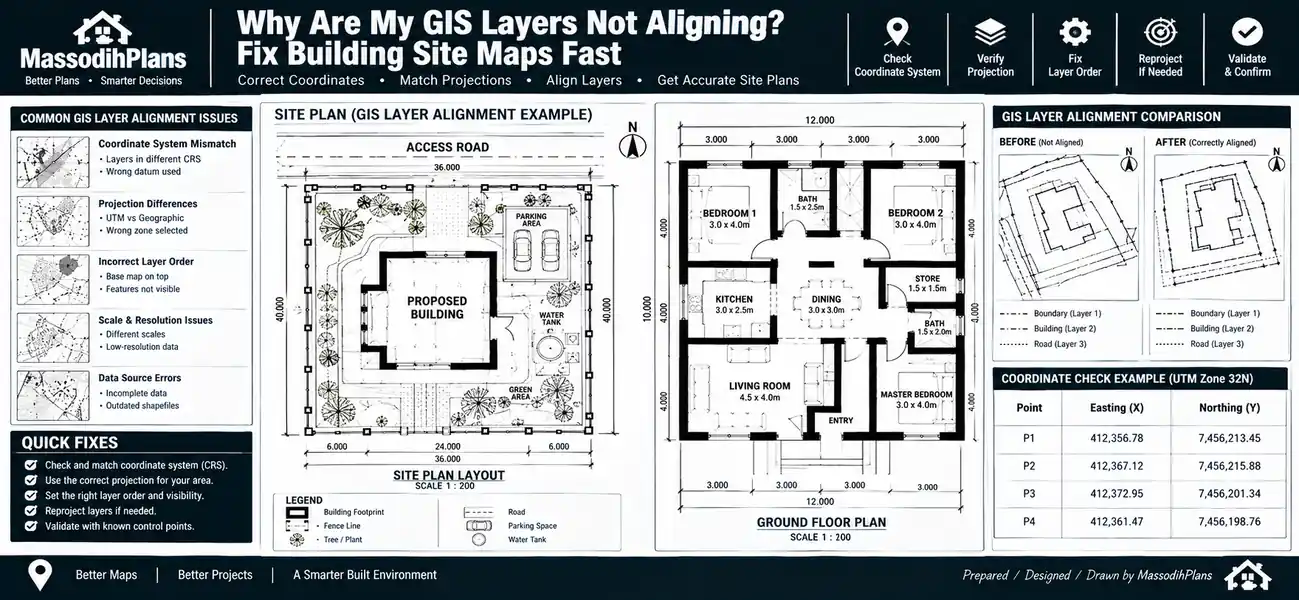
Why Are My GIS Layers Not Aligning? — GIS Fixes for Building Site Plan Maps
Picture this. You’ve loaded your base map, your survey points, your satellite imagery, and your parcel boundaries into your GIS software, feeling good about life and then you hit “zoom to layer” and your beautiful parcel data is sitting calmly in the Atlantic Ocean while your base map insists it’s in Lagos. Or worse, everything looks fine until you zoom in close enough to notice your road layer is cutting through the middle of buildings that are clearly not supposed to have a road through them.
I’ve had this exact conversation more times than I can count with students in a lecture hall who think they’ve broken the software, with clients who are convinced their drone pilot sent them the wrong file, and with fellow planners on a deadline who are one misaligned shapefile away from losing their minds. So let’s settle this properly, once, in plain language, so you never have to Google this at 1am again.
Your layers are not misaligned because GIS software hates you. They’re misaligned because somewhere, a piece of location information a coordinate system, a datum, a unit, a reference point doesn’t agree with the rest of your data. GIS software is painfully literal. It will do exactly what your data tells it, even when what your data tells it is wrong. Let’s go through every real reason this happens, in the order you should actually check them.
The Quick Diagnostic Checklist (Check These First)
Before we go deep, run through this in under two minutes. It solves the problem more often than people expect:
- Do all your layers have a defined coordinate reference system (CRS)? Not “probably” actually confirmed, visible in the layer properties.
- Are all your layers using the same datum, not just the same-looking coordinate numbers?
- Is your project/map CRS set correctly, and is “on-the-fly reprojection” switched on?
- Are your units consistent metres with metres, not metres against feet or degrees?
- Was any layer digitized, scanned, or georeferenced without proper ground control points?
If you’ve checked all five and you’re still confused, keep reading because one of the next sections is almost certainly your culprit.
Reason 1: Your Layers Are in Different Coordinate Reference Systems
This is, without question, the single most common reason GIS layers don’t line up and it’s the first thing I check with every student and every client. A Coordinate Reference System (CRS) tells your software how to translate the numbers in your data (latitude/longitude, or eastings/northings) into actual positions on the earth. If two layers were saved using different CRSs, their coordinate numbers describe completely different frameworks, even if the numbers themselves look similar.
A classic example: one layer saved in geographic coordinates (degrees WGS84, EPSG:4326) sitting next to one saved in a projected system (metres say, UTM Zone 32N for most of southern Nigeria). If your software doesn’t know to reproject one of them on the fly, it will try to plot degree values as if they were metre values, and your layer ends up either a pinpoint in the wrong spot or scattered somewhere nowhere near your study area.
The fix: Check each layer’s CRS in its properties panel. If they don’t match, don’t manually shift the layer reproject it properly using your software’s “reproject layer” or “define projection” tool, matching it to your project’s working CRS.
Transitioning from “wrong CRS” to an even sneakier version of the same problem because sometimes your CRS is technically defined, and your layers still refuse to cooperate.
Reason 2: A Layer Has No Defined Projection At All
This one is quieter than reason 1, and in some ways more annoying, because your software won’t always warn you clearly. A shapefile missing its .prj file, or a CAD-exported layer with no coordinate information attached, has coordinates but no instructions for what those coordinates mean. Your GIS software will often just plot the raw numbers using whatever the project’s current CRS is which may be completely wrong for that data.
This is extremely common with:
- Shapefiles shared via email or WhatsApp where only the
.shpfile was sent, not the full file set (.shp,.shx,.dbf,.prj) - Data digitized from an old paper survey plan with no coordinate reference recorded
- CAD drawings (DWG/DXF) exported from AutoCAD without a defined coordinate system
The fix: Never guess. Find out what coordinate system the data was actually captured or digitized in from the surveyor, the original file set, or the metadata and explicitly assign (not reproject) that CRS to the layer before doing anything else with it.
Here’s where I usually crack a joke in the lecture hall, because at this point, half the class is already blaming the software.
As I Tell My Students: You know wetin dey happen when una send shapefile give person without the .prj file? Na like you give person your house address but you no tell am say the address na for Lagos or for London. The person go still find “No 5 Allen Avenue” e just go land for the wrong city! GIS no be magic, e be instruction if you no give am correct instruction, e go misbehave exactly as you tell am.
Reason 3: Your Layers Share a Projection but Not a Datum
This is the one that confuses even experienced GIS users, because it’s subtle. Two layers can both be in “UTM,” both labelled in metres, and still be off by anywhere from a few metres to over 100 metres because the datum underneath the projection is different.
A datum is the mathematical model of the earth’s shape and size that your coordinate system is built on top of. Nigeria historically used the Minna Datum for much of its mapping and survey work, while most modern GPS and satellite data uses WGS84. These two datums can differ by roughly 100–200 metres in parts of West Africa if a proper datum transformation isn’t applied. Layer A looks “close enough” to Layer B until you zoom into parcel-level detail, and suddenly your plot boundary is sitting inside your neighbour’s compound.
This isn’t just a Nigerian issue it’s a global one, and it’s exactly why GIS professionals everywhere quietly dread datum mismatches more than almost anything else:
- The United States historically used NAD27, later replaced by NAD83, with ongoing updates toward newer reference frames
- The United Kingdom’s national mapping traditionally used OSGB36 alongside WGS84 for GPS data
- Australia has transitioned from GDA94 to the more current GDA2020 to account for continental plate movement
- Germany and much of continental Europe work with ETRS89 alongside older national datums
The fix: Confirm not just the projection name but the full CRS definition (including the datum) for every layer, and apply a proper datum transformation when converting between them never just relabel one layer as the other and hope for the best.
Moving from the invisible datum problem to one that’s a little more mechanical, but just as common.
Reason 4: On-the-Fly Reprojection Is Confusing You, Not Helping You
Most modern GIS software (QGIS, ArcGIS Pro) will automatically reproject layers visually so they appear aligned on screen, even when their underlying, stored coordinates are in completely different systems. This feature is genuinely useful until it quietly convinces you that everything is fine when it isn’t.
The problem shows up the moment you do anything beyond simple viewing: measuring distance, calculating area, running a spatial join, or exporting data for someone else to use in a different setup. The layers that “looked aligned” on your screen can produce wildly incorrect measurements, because on-the-fly reprojection fixes the display, not the underlying data.
The fix: Don’t rely on visual alignment as proof that your data is correct. Check each layer’s actual stored CRS in its properties, and for anything going into analysis or being shared externally, reproject the data permanently rather than depending on the software’s on-the-fly display trick.
I tell my students this every semester “aligned on screen” and “aligned in reality” are not the same sentence in GIS. Always verify in the layer properties panel, not just with your eyes.
Reason 5: Unit Mismatch — Metres, Feet, and Degrees Fighting Each Other
Sometimes the CRS is actually correctly defined on both layers, but the units attached to it differ one layer measured in international feet, another in metres, or worse, one in US survey feet (which differ very slightly from international feet, enough to cause real error over large distances). This is a particularly common headache in parts of the United States, where state plane coordinate systems can use either unit depending on the state and the data source.
The fix: Check the linear unit listed in each layer’s CRS definition, not just the CRS name. If units differ, don’t eyeball a conversion let your software handle the unit conversion as part of a proper reprojection.
That covers the “numbers don’t mean what you think” category. Now let’s talk about the “the image itself is wrong” category because misalignment isn’t always about vector data.
Reason 6: Raster and Imagery Georeferencing Errors
If your misaligned layer is a satellite image, a drone orthomosaic, or a scanned paper map, the problem is often in how that image was georeferenced meaning how its pixels were tied to real-world coordinates in the first place.
Common causes include:
- Ground control points (GCPs) that were placed inaccurately during georeferencing
- A drone flight processed without enough overlap or without any GCPs at all, relying purely on onboard GPS, which can introduce several metres of positional error
- A scanned paper map georeferenced using only 2–3 points, which doesn’t account for distortion across the whole sheet
- A shifted raster origin, where the file’s internal header reports a different starting coordinate than what the software displays — a known quirk that has appeared in several GIS platforms over the years when raster files carry incomplete or ambiguous georeferencing information
The fix: Re-georeference the raster using more ground control points spread evenly across the image, ideally tied to known, surveyed coordinates rather than guessed positions. For drone work, always fly with proper ground control where survey-grade accuracy matters don’t rely purely on consumer GPS.
Reason 7: It’s Not Misaligned — It’s Just Not Showing (Scale-Dependent Visibility)
This one trips up more people than you’d expect, and it’s almost funny once you spot it: a layer set to only display between certain zoom levels (scale-dependent visibility) can look “missing” or make another layer appear misaligned simply because you’re zoomed in or out past the range where it’s set to render. Software version updates have, in the past, been known to quietly reset these visibility thresholds during file upgrades, making a previously well-behaved project suddenly look broken for no apparent reason.
The fix: Before assuming a coordinate problem, check each layer’s scale-dependent visibility settings. If a layer simply isn’t rendering at your current zoom level, that’s not misalignment it’s a display setting.
As I Tell My Students: This one dey vex me well well for lecture hall. Student go come meet me, “Sir, my road layer don disappear, abeg help!” I go zoom in, and the road dey there the thing just no gree show for that zoom level! Na like say you dey find your wife for market, and she dey stand right behind you she no lost, na your eye the problem be!
Reason 8: Digitizing and Snapping Errors
If you (or whoever created the layer) traced boundaries from a base map without snapping tolerance properly configured, you can end up with hairline misalignments a boundary line that’s technically “close” to a road or parcel edge but not actually touching it. This shows up as small, inconsistent gaps or overlaps rather than a dramatic citywide offset, and it’s easy to mistake for a projection problem when it’s really a digitizing precision issue.
The fix: Turn on snapping with an appropriate tolerance before digitizing, and run a topology check (most GIS software has one) to catch gaps, overlaps, and dangling nodes after you’re done.
Reason 9: Software and Version Differences in Handling Projections
Different GIS platforms and even different versions of the same platform can handle undefined projections, datum transformations, and on-the-fly reprojection slightly differently. A project built in an older version of your software, or shared between someone using QGIS and someone using ArcGIS, can behave inconsistently even when the underlying data hasn’t changed, because of differences in default CRS handling, available transformation grids, or how each platform treats layers with no explicit CRS. Compatibility issues like this have been documented repeatedly as GIS software has evolved don’t assume your file is broken before checking whether the issue only appears on one specific software version.
The fix: When collaborating across different software or versions, always share the full file set (including .prj files or embedded CRS metadata) and agree on one working project CRS up front, rather than letting each person’s software guess independently.
Now that we’ve covered the full list of causes, let’s bring it together into one workflow you can actually follow next time this happens.
Step-by-Step: How to Actually Fix Misaligned GIS Layers
- Check each layer’s CRS in its properties panel. Don’t assume confirm.
- Confirm the datum, not just the projection name. Two layers can share a projection family and still sit on different datums.
- Set your project’s working CRS deliberately, and enable on-the-fly reprojection so layers display correctly while you investigate.
- Check units metres, international feet, US survey feet, or degrees — on every layer involved.
- For rasters, verify the georeferencing check ground control point accuracy, or re-georeference if the image came from a drone or scan.
- Rule out scale-dependent visibility before assuming a coordinate problem exists at all.
- Run a topology or snapping check if the misalignment is small and localized rather than citywide.
- Permanently reproject, don’t just rely on the visual fix, before running any measurement, analysis, or export.
- Document the final working CRS for the project so the next person who touches the file doesn’t start this whole process from zero.
Country-by-Country Datum and Grid Quick Reference
Because this content reaches planners, students, and professionals working across very different mapping systems, here’s a quick reference for the datum/grid realities you’re likely to run into depending on where your data comes from:
Nigeria historically Minna Datum; modern GPS and most current GIS work uses WGS84; UTM zones 31N, 32N, and 33N cover the country
United States NAD83 is current standard; older data may still be in NAD27; State Plane Coordinate Systems vary by state and sometimes by unit (feet vs metres)
United Kingdom OSGB36 (British National Grid) alongside WGS84 for GPS-sourced data
Germany ETRS89/UTM is current standard, succeeding older national systems
UAE WGS84 is standard for most modern GIS and survey work, with UTM Zone 40N covering much of the country
Iceland ISN2016 is the current national reference frame, reflecting the country’s unique tectonic plate movement
Luxembourg LUREF alongside ETRS89/UTM for broader European compatibility
Switzerland CH1903+/LV95 is the national standard, distinct from most neighbouring countries’ systems
Qatar WGS84/UTM Zone 39N is standard for current survey and GIS work
Canada NAD83(CSRS) is current standard, with UTM zones varying by province
Australia GDA2020 is the current standard, succeeding GDA94, specifically to account for continental drift
Singapore SVY21 is the national projected coordinate system used alongside WGS84
Whatever country you’re working in, make it a habit to write the exact CRS (including datum) into your project file name or metadata the day you start a project “Lagos_Estate_WGS84_UTM32N” tells the next person everything they need to know in one glance.
Common Follow-Up Questions I Get Asked
Why do my layers align at one zoom level but not another?
This is almost always a scale-dependent visibility setting, not a true coordinate problem check each layer’s visibility range before suspecting your projection.
Why did my layers align yesterday but not today after I reopened the project?
This usually points to a project CRS setting that didn’t save correctly, or a software update that changed default reprojection behaviour check your project’s CRS settings first.
Can I just manually drag a layer to “fix” the alignment?
No. Manually shifting a layer breaks its actual coordinate accuracy permanently, even though it might look right on screen. Always fix the CRS or georeferencing, never the visual position directly.
My drone map looks fine in the drone software but misaligned in my GIS. Why?
Drone processing software and GIS platforms can handle default CRS assumptions differently, and drone imagery without ground control points can carry several metres of GPS error that only becomes visible once laid over surveyed data.
Is a small, consistent offset the same problem as a huge, obvious offset?
Usually not. A huge offset (plotting in the wrong ocean or continent) is almost always a CRS or datum mismatch. A small, consistent offset of a few metres is more often a datum transformation issue or a digitizing/georeferencing precision problem.
One Last Joke Before You Go Fix Your Map
As I Tell My Students: Una sabi the GIS student wey go cry say “sir, my whole map don scatter, nothing dey where e suppose dey!” and when I check, na only one layer dey wrong CRS. I tell am: “my friend, na only one person miss the appointment, make we no arrest the whole meeting!” That’s the thing about GIS one wrong CRS fit make everything else look guilty when na only one layer dey misbehave.
Finally
Misaligned GIS layers are never random, and they’re never the software “just acting up.” Somewhere in your project, a CRS, a datum, a unit, or a georeferencing step doesn’t agree with the rest of your data and once you know where to look, finding it stops being a mystery and starts being a five-minute check. Whether you’re a planning student working through your first spatial analysis assignment, a surveyor handing off a drone orthomosaic, or a client wondering why your consultant’s parcel data doesn’t sit where your site actually is, the discipline is the same: check the CRS, check the datum, check the units, and never trust “it looks fine on screen” as proof of anything.
If you’re working through estate layouts, master plans, or site documentation and want this handled correctly from the start rather than fixed after the fact, our Services page outlines how we support GIS, layout, and survey-integrated planning work. Browse our Plans Library for projects where this kind of spatial accuracy has already been built in, or visit Plan School to go deeper into the planning and documentation process behind a project. You can also explore more planning and GIS guides on our Homepage.
- Why Is My GIS Map Not Showing Correctly? (Real Fixes That Actually Work)
- How to Improve Construction Site Communication: Avoid Delays and Rework Now
- How to Manage Construction Documents Properly for Nigerian Construction Sites
- How to Avoid Project Delays in Construction: A Nigerian Site Planning Guide
- Where Should Windows and Doors Go? Nigerian House Plan Design Guide
Author
Massodih Okon is a Nigerian built-environment professional with academic and professional experience in urban and regional planning, geography, architectural design, Landscape Design, GIS and land development.
He holds a Master’s degree in Urban and Regional Planning from the University of Uyo and a first degree in Geography and Regional Planning.
Through MassodihPlans, he publishes practical guides on Nigerian house plans, building design, physical planning, site planning, development approval and residential construction. Read the full author profile →