Why Is My GIS Map Not Showing Correctly? (Real Fixes That Actually Work)
Picture this. You’ve just finished digitizing a client’s boundary, you hit render, and what comes back is either nothing at all, or your beautifully traced plot sitting somewhere in the Atlantic Ocean. You didn’t do anything “wrong” in the way you think you did GIS software just has a specific set of failure points, and almost every map problem you’ll ever hit traces back to one of a handful of root causes. I’ve been teaching and troubleshooting this with students, clients, and my own project data for years, and this article is me sitting across the table from you, going through it the way I would in a one-on-one session.
I’ll go layer by layer (pun fully intended) through every version of “my map is broken” blank map, layers not showing, layers in the wrong place, missing features, distorted geometry, wrong coordinates, and wrong projection plus a few things most GIS troubleshooting articles never bother to mention at all.
Before You Touch Anything: Three Quick Questions
Before diving into fixes, answer these three questions honestly. They’ll usually point you straight to the right section below instead of making you read the whole article.
Did the map ever render correctly before, or has it never worked? If it worked before and broke after a specific action (adding a layer, updating software, moving a file), the cause is almost always that action.
Is the problem affecting one layer or the whole map? One broken layer points to a data-specific issue. A fully blank canvas points to a rendering, connection, or project-level issue.
Are you working with local files, or pulling from an online service (API, web tile server, cloud-hosted layer)? This single distinction splits most GIS problems into two completely different troubleshooting paths, and conflating them wastes more time than almost anything else.
With that framing in place, let’s go through every failure mode properly.
Blank Map: When You Open the Project and See Nothing
This is the one that triggers the most panic, so we start here. A blank map almost always comes down to one of these:
Zoom level mismatch. Your layer exists, but your current view extent is nowhere near it. This happens constantly after importing a layer in a different coordinate system than your project the data is technically “there,” just a continent away from where your map is currently looking.
Fix: Right-click the layer and use “zoom to layer” (QGIS) or “zoom to extent” (ArcGIS Pro/Online) rather than trying to manually scroll and guess.
Layer visibility turned off, either at the layer level or hidden behind a scale-dependent visibility range you forgot you set.
Fix: Check the layer panel checkbox, and separately check layer properties for “visible at this scale range” settings this one is sneaky because the layer looks “on” but simply won’t draw at your current zoom level.
Rendering/graphics driver issue
Rendering/graphics driver issue, especially common on laptops with switchable integrated/dedicated graphics, where the GIS software is trying to render through the wrong GPU.
Fix: Update your graphics driver, and in software like QGIS, try toggling OpenGL/hardware acceleration settings if the map canvas stays grey or black.
Broken data source connection the layer is pointing to a file path, database, or web service that’s no longer reachable (moved file, expired API key, VPN disconnected, server down).
Fix: Check for the “broken link” icon in your layer panel (usually a red exclamation mark) and reconnect the data source.
Project file corruption, rare but real especially after a crash during saving.
Fix: Open a backup/autosave version, or create a fresh project and re-add your layers from their original files rather than trying to repair the broken project.
Before assuming anything is broken, zoom all the way out to full extent first. I can’t count how many “my map is blank!” emergencies from students turned out to be a layer sitting quietly off-screen, patiently waiting to be found.
This one reminds me of a student who opened QGIS, saw an empty canvas, and shouted across the lecture hall, “Oga, the network don enter!” Guy, GIS no be MTN o no network wahala dey here. Na your layer wey dey hide for another zoom level dey worry you join.
Layers Not Appearing (While Others Work Fine)
Different problem from a fully blank map here, most of your map is fine, but one or two specific layers refuse to show up.
Zero features matching current filter or definition query. If you (or a previous editor of the project) applied an attribute filter, the layer can be technically loaded with zero visible features under current conditions.
Fix: Check the layer’s filter/definition query settings and clear or adjust them.
Symbology set to render nothing visible a fill color with zero opacity, a line width set to 0, or a symbol category that doesn’t match any value in your data (common after an attribute field gets renamed or re-typed).
Fix: Open the symbology/style panel and check for an invisible fill, missing symbol assignment, or a “no symbol” category catching all your features.
Layer order (z-index) problem a large polygon layer sitting on top of your point or line layer, visually burying it even though it’s technically rendering.
Fix: Drag the layer order in your layer panel so smaller/point features sit above larger polygon layers.
Coordinate reference system (CRS) mismatch pushing the layer off the visible map area this is the single most common cause of “my layer just disappeared,” and it deserves its own full section below.
Scale-dependent rendering set during a previous editing session, where a layer is intentionally hidden below or above a certain zoom threshold.
Fix: Check and reset scale visibility range in layer properties.
Layers in the Wrong Location
This is the one that makes people panic the most, because the map clearly has data it’s just somewhere it absolutely should not be. Common causes, from most to least frequent:
Coordinate Reference System mismatch between layers. If one layer is in WGS84 (EPSG:4326) and another is in a local projected system, and your software isn’t reprojecting on the fly, they’ll draw in completely different places relative to each other.
Fix: Confirm every layer’s CRS explicitly (don’t assume), and either reproject the mismatched layer or enable on-the-fly reprojection in your project settings.
Swapped latitude and longitude. This single mistake is responsible for more “my data is in the wrong place” tickets than almost anything else. Most formats expect longitude first, then latitude (X, Y order) but humans naturally think and often enter “latitude, longitude,” which flips your point to roughly the wrong hemisphere or wrong side of the globe.
Fix: Check your import field order against your software’s expected order, specifically for X = longitude, Y = latitude.
Wrong datum assumption
Wrong datum assumption. A coordinate pair can be technically “correct” under one datum (say, a local national datum) but shift by anywhere from a few metres to a few hundred metres when read as if it were WGS84, depending on the country and datum in use.
Fix: Confirm the datum your source data was collected in field survey equipment and older national datasets are the most common source of this mismatch and transform properly rather than assuming WGS84.
Degrees vs. a planar coordinate system confusion. Entering projected (metre-based) coordinates into a field expecting decimal degrees, or vice versa, places your feature either barely off the map or wildly far from it.
Fix: Confirm which coordinate type your layer and your input values are actually using before entering coordinates manually.
Na so one guy message me one time, say his house marker show for inside the Sahara Desert, meanwhile the man dey chill for Lagos. I tell am, “Oga, you don relocate without telling anybody!” Coordinate mix-up fit carry your whole compound comot go another continent for the map no be real estate wahala o, na pure GIS wahala.
Blank or Missing Features (Partial Data Not Showing)
Slightly different again from a whole layer disappearing this is when a layer loads, but specific features within it are missing.
Geometry validity errors. Self-intersecting polygons, unclosed rings, or null geometries can cause individual features to silently fail to render, even while the rest of the layer draws fine.
Fix: Run a “check validity” or “repair geometry” tool (available in QGIS and ArcGIS) to flag and fix broken geometries.
Attribute data type mismatches after an import or edit a field that should be numeric gets imported as text, breaking any numeric-based filter, label expression, or symbology rule tied to it.
Fix: Check and correct field data types, then re-apply symbology/labeling rules that depend on them.
Extent or scale-dependent rendering hiding specific features, especially common with labels that are set to avoid overlapping and simply get dropped at certain zoom levels.
Fix: Adjust label placement and “allow overlapping labels” settings, or zoom in to confirm features are present but just not labeled at the current scale.
Sync issues with live/cloud data sources, where the local map hasn’t refreshed against a recently updated hosted feature layer.
Fix: Manually refresh or re-sync the layer’s connection rather than assuming the data itself is missing.
Distorted Map (Shapes Look Stretched, Skewed, or Wrong)
A genuinely distorted-looking map usually comes from one of two very different places, and telling them apart saves a lot of wasted troubleshooting time.
Projection-related distortion, which is expected and mathematically unavoidable. Every flat map projection distorts area, shape, distance, or direction to some degree a world map in a cylindrical projection like Web Mercator, for instance, visibly stretches landmasses near the poles. This isn’t a bug; it’s the actual nature of flattening a 3D surface.
Fix: If area or shape accuracy matters for your specific use (measuring land area, for instance), switch to an equal-area or conformal projection appropriate for your region rather than a general-purpose web projection.
Software rendering distortion, which is a genuine problem, usually caused by a mismatched aspect ratio between your data’s coordinate system units and your display/output canvas, or a corrupted graphics rendering pipeline.
Fix: Check your map canvas or export settings for forced aspect ratio or scale settings, and confirm your project’s CRS matches what your display units expect.
Mixing geographic (degree-based) and projected (metre-based) layers in the same view without reprojection can also visually “squash” one layer relative to another, especially noticeable at larger scales (city or site-plan level) rather than continental views.
Fix: Standardize all layers in your project to a single appropriate projected CRS for your area before doing detailed site-level work.
Wrong Coordinates: When the Numbers Themselves Are Off
This is distinct from “layer in the wrong location” above, specifically when you’re looking at coordinate values directly (in an attribute table, a GPS device, or a coordinate entry field) and they look wrong.
Degrees-minutes-seconds vs. decimal degrees confusion. A coordinate like 6° 25′ 12″ N is easy to mistype or misread as 6.2512 decimal degrees instead of the correct conversion (approximately 6.4200), which places a point several kilometres off.
Fix: Always confirm and explicitly convert between DMS and decimal degrees rather than assuming a direct digit substitution.
GPS drift and accuracy limits, especially from consumer-grade or smartphone GPS, which can be off by several metres under tree cover, near tall buildings, or in poor satellite visibility conditions.
Fix: For anything requiring survey-grade accuracy, use a proper GNSS receiver with correction (RTK/PPK) rather than relying on phone GPS, and always cross-check field coordinates against a known reference point.
Geocoding errors from address-to-coordinate conversion services. Automated geocoding can misplace a point when an address is incomplete, ambiguous, or the geocoding service’s reference data is outdated for your area, especially in regions with inconsistent address systems.
Fix: Manually verify geocoded points against satellite imagery or a secondary reference before trusting them for anything important.
Wrong Projection: The One Everybody Gets Confused About
This deserves its own clear explanation because so much of the confusion is really a vocabulary problem. These three terms get used interchangeably, but they are not the same thing:
Datum the reference model of the Earth’s shape your coordinates are measured against (examples: WGS84, a national datum specific to a country)
Coordinate system how locations are expressed numerically (geographic, in degrees, or projected, in metres/feet on a flat grid)
Projection the specific mathematical method used to flatten the curved Earth onto a 2D surface, which is where distortion gets introduced
“Wrong projection” problems almost always show up as one of these symptoms: your layer appears shifted by a consistent, predictable distance; measurements (area, distance) come out clearly wrong even though positions look roughly right; or a country-specific layer looks fine until you add a second layer from a different source and the two no longer line up.
Common Coordinate Systems by Country (A Layer Almost No Other Article Includes)
Because this audience spans several countries, here’s a practical reference for commonly used local systems you’ll encounter mismatching these against a default WGS84 assumption is one of the most frequent “wrong projection” causes internationally:
- United States — State Plane Coordinate System (varies by state) and NAD83
- United Kingdom — British National Grid (OSGB36)
- Germany — ETRS89/UTM, historically Gauss-Krüger
- Switzerland — CH1903+/LV95
- Luxembourg — LUREF
- Iceland — ISN93/ISN2016
- UAE and Qatar — UTM zones 39N/40N, commonly on WGS84
- Canada — NAD83, with UTM zones varying by region
- Australia — GDA2020 (recently transitioned from GDA94)
- Singapore — SVY21
- Nigeria — Minna Datum (historically) and increasingly WGS84/UTM for modern survey work
If you’re combining a dataset from one of these local systems with a global WGS84 dataset without explicit reprojection, expect a positional shift sometimes small, sometimes large enough to put a building on the wrong side of a road.
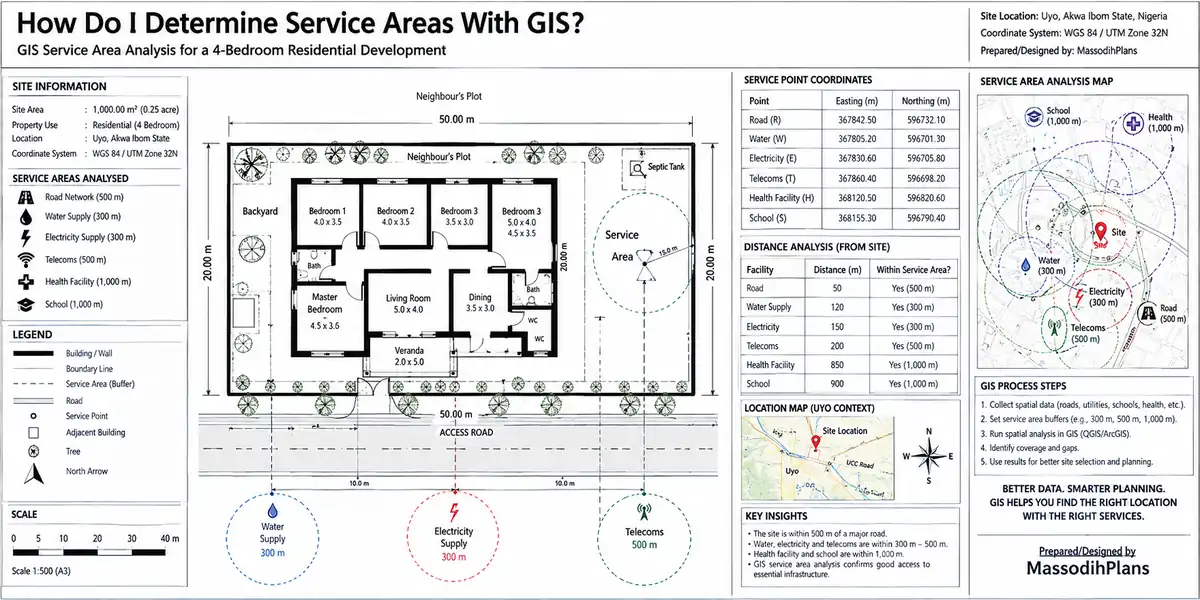
I had a client once see his access road cutting straight through what looked like open ocean on his site plan. He called me, half-panicking, “Massodih, you don turn my estate to Atlantis?!” I just laughed and told him relax, nobody’s building a house in the middle of the sea. That was a straightforward projection mismatch, not a maritime real estate opportunity.
Before You Build: Never assume a coordinate system just because the numbers “look like” latitude and longitude. Confirm it explicitly in your file’s metadata, your .prj file, or by asking whoever supplied the data a wrong assumption here cascades into every other kind of map error covered in this article.
Software-Specific Quick Fixes (The Section Most Articles Skip Entirely)
Different platforms fail in slightly different ways. Here’s a quick reference by tool, since generic “check your settings” advice rarely tells you where to actually click.
QGIS: Check Layer Properties → Source for CRS mismatches; use “Zoom to Layer” before assuming data is missing; check the Layer Styling panel for symbology issues; if the canvas stays grey, test disabling OpenGL rendering under Settings → Options → Rendering.
ArcGIS Pro/Online: Check the Data Source tab for broken links; use “Zoom to” on the layer context menu; check Definition Queries under layer properties for accidental filters; for web maps, check that the hosted feature layer’s sharing/visibility settings actually permit the current viewer to see it.
Google My Maps: Layers not showing usually trace to import formatting issues (wrong column headers for location data) or a layer accidentally toggled off in the legend panel check both before re-uploading anything.
Mapbox Studio / web-based tile services: Check your style’s data source URL and tileset ID for typos; confirm your API/access token hasn’t expired or hit its usage limit, which silently fails tile requests rather than throwing an obvious error.
Leaflet/other JavaScript web maps: Open your browser’s developer console (F12) and check for failed network requests or CORS errors a blank Leaflet map with no visible error on the page itself is almost always a silent JavaScript or tile-loading failure visible only in the console.
Browser and Web-GIS Specific Problems
If your map lives on a website rather than desktop software, a few extra failure points come into play that desktop-only troubleshooting guides never mention:
Ad blockers and privacy extensions frequently block tile server requests or third-party map APIs, producing a blank map with no obvious cause
Mixed content errors (an HTTPS page trying to load an HTTP tile source) get silently blocked by modern browsers
CORS (Cross-Origin Resource Sharing) restrictions on the tile or data server can block your map from loading external layers, visible only in the browser console, not on the page itself
Expired or rate-limited API keys for commercial map services fail silently in many implementations rather than showing a clear error to the end user
Mobile and Field GIS App Issues
For anyone collecting data in the field rather than just viewing a map at a desk, a few more causes show up:
Offline basemap caching gaps areas you didn’t pre-download before going offline simply render blank once you lose signal
Device compass/sensor calibration drift affecting orientation display, especially near metal structures or vehicles
GPS drift under poor satellite visibility, covered above, is far more pronounced on mobile devices than dedicated GNSS equipment
Print and Export Layout Problems
A map that looks perfect on screen can still go wrong on export:
Resolution/DPI mismatches causing blurry or pixelated output, especially with raster basemaps scaled up for large-format printing
Page size and scale bar inconsistencies when exporting a layout designed at one paper size to a different one without adjusting scale
Font and symbol rendering differences between your software’s screen display and its PDF/image export engine, occasionally causing labels to shift or disappear only in the exported file
A Simple Troubleshooting Order to Follow
When you genuinely don’t know where to start, work through this sequence rather than randomly clicking settings:
- Confirm whether the issue is one layer or the whole project
- Check zoom/extent before assuming anything is missing
- Confirm every layer’s CRS explicitly, don’t assume
- Check layer visibility settings and scale-dependent rendering
- Check for filters, definition queries, or broken data source links
- If coordinates look wrong, check DMS vs. decimal degrees and X/Y order
- If shapes look distorted, confirm whether it’s projection math or a rendering bug
- Only then consider file corruption or software reinstall as a last resort
Frequently Asked Questions
Why is my GIS map completely blank when I open the project?
Most often a zoom/extent mismatch from a CRS difference, a layer visibility setting left off, or a broken data source connection work through these in order before assuming the project file itself is corrupted.
Why are my layers showing in the wrong place on the map?
Almost always a coordinate reference system mismatch between layers, swapped latitude/longitude order, or a wrong datum assumption confirm each layer’s CRS explicitly rather than assuming they match.
Why does my map look stretched or distorted?
This is either expected projection distortion (normal and unavoidable at certain scales and projections) or a rendering/aspect ratio bug check whether measurements are mathematically affected (projection) or just visually off (rendering).
How do I know if I have the wrong projection?
Signs include a consistent positional shift across your whole layer, area or distance measurements that are clearly wrong, or two layers from different sources that don’t align even though both “look” correct individually.
Why are some of my features missing even though the layer loaded?
Usually a geometry validity error on specific features, an attribute filter or definition query limiting what’s displayed, or label placement rules hiding features at your current zoom level.
Finally
Nearly every “my GIS map isn’t showing correctly” problem traces back to one of a handful of causes a mismatched coordinate system, a hidden filter, a visibility setting, or a genuine data error once you know where to look instead of guessing. Work through the questions and checks above in order, and you’ll usually find the actual cause faster than you’d expect, long before you need to reinstall anything or start a project from scratch.
If you’re working on a site plan, estate layout, or survey project and want this kind of spatial data handled correctly from the start, our Services page outlines how we support clients with GIS, survey, and planning work. Browse our Plans Library for projects where accurate site data made the difference, or visit Plan School to build a stronger foundation in reading and working with spatial data. You can also explore more planning and GIS guides on our Homepage.
- How to Improve Construction Site Communication: Avoid Delays and Rework Now
- How to Manage Construction Documents Properly for Nigerian Construction Sites
- How to Avoid Project Delays in Construction: A Nigerian Site Planning Guide
- Where Should Windows and Doors Go? Nigerian House Plan Design Guide
Author
Massodih Okon is a Nigerian built-environment professional with academic and professional experience in urban and regional planning, geography, architectural design, Landscape Design, GIS and land development.
He holds a Master’s degree in Urban and Regional Planning from the University of Uyo and a first degree in Geography and Regional Planning.
Through MassodihPlans, he publishes practical guides on Nigerian house plans, building design, physical planning, site planning, development approval and residential construction. Read the full author profile →