How Do I Download Google Earth Imagery? Nigerian Site Mapping for Buildings
Somebody in my DMs last week sent me a screenshot of a Google Earth view zoomed right into his family’s land, and he asked, almost apologetically, “Sir, is it possible to just… take this and use it in my drawing?” That one question is actually three different questions wearing one trench coat can you technically get the image out of the software, can you legally use what you get, and can you make it useful for actual GIS or architectural work once you have it. Most articles answer the first one and quietly ignore the other two. I’m answering all three, because that’s what actually solves the problem you came here with.
I’ll be honest with you the way I’d be honest with a client sitting across my desk or a student in my GIS class: Google Earth was never built as a free satellite imagery download service. It’s a viewer. That single fact explains almost every frustration you’ve probably already run into the blurry export, the missing coordinates, the “why can’t I just right-click and save this nicely like a normal image.” Once you understand what Google Earth actually is versus what people wish it was, the rest of this becomes easy.
First, What Exactly Is “Google Earth Imagery”?
Before you download anything, it helps to know what you’re dealing with, because “Google Earth imagery” is not one single product.
Google Earth displays satellite and aerial photography that Google licenses from a mix of sources commercial satellite operators, government agencies, and aerial survey companies stitched together into the globe you see when you spin it on your screen. That imagery belongs to those original providers and to Google’s licensing arrangements with them, not to you, and not to Google to give away freely either. This is the single most important thing to understand before you touch a download button, because it determines what you’re allowed to do with whatever you export next.
There are also, confusingly, several different “Google Earth” products:
- Google Earth (web) the browser version, lightest on features
- Google Earth Pro (desktop) free, full-featured, the one most GIS and planning professionals actually use
- Google Earth Engine a completely different, cloud-based platform for large-scale satellite data analysis, mostly used by researchers and remote sensing professionals
- Google Earth Studio for creating cinematic flyover animations, with its own separate attribution rules
If you’re trying to “download Google Earth imagery,” 95% of the time you actually want Google Earth Pro, and that’s where we’ll spend most of this guide.
How Do I Download Google Earth Image from the Desktop App (Step by Step)?
Here’s the honest workflow, not the sanitized one.
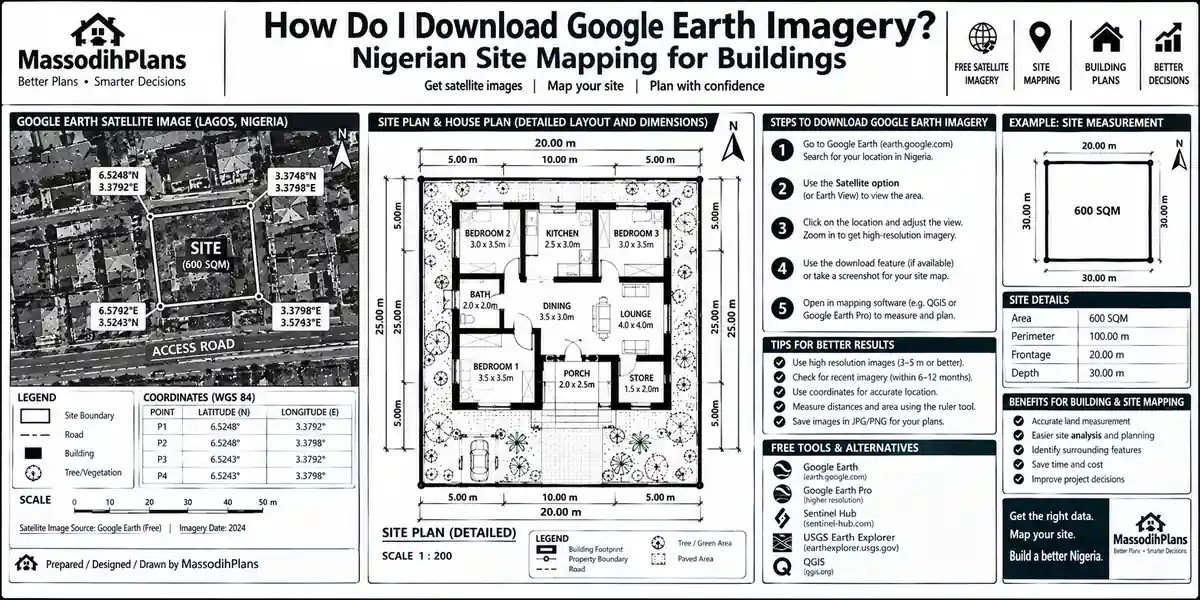
Install Google Earth Pro from Google’s official Earth download page it’s free, and you don’t need any special license key anymore; it installs straight onto Windows, Mac, or Linux.
Navigate to your location. Use the search bar or fly manually to your site, then tilt the view back to straight-down (press the ‘U’ key or use the navigation controls) so you’re looking at a flat map, not an angled 3D view, unless you specifically want the 3D perspective.
Strip the clutter. Go to the “Layers” panel and uncheck everything you don’t want showing roads, borders, labels, placemarks. A clean image means switching off almost every default layer.
Open Save Image. Go to File → Save → Save Image, or click the Save Image icon directly on the toolbar.
Set your resolution
Set your resolution. In the Save Image panel, there’s a resolution slider. Push it toward the maximum Google Earth Pro can export up to roughly 4,800 x 4,800 pixels, far higher than most people realize exists.
Resize your viewing window first. This one trick matters more than the resolution slider alone: make your Google Earth window as large and as square as your screen allows before you open Save Image, because the exported image resolution is tied to your window’s aspect ratio and size.
Save and name your file. Choose JPEG or PNG, pick a folder, and save.
That’s the technical “how.” But here’s the part almost nobody tells you clearly: this exports a flattened picture, not geographic data. It has no coordinates embedded in it. It’s a snapshot, the same way a photograph of a map is a photo, not the map itself. If you need the image to actually line up correctly on a GIS system, keep reading that’s the georeferencing section coming up next.
Why Does My Downloaded Image Always Look Blurry or Pixelated?
This is, without exaggeration, the most common complaint I get from students and clients alike, and it comes down to one unavoidable fact: Google Earth’s imagery resolution is not uniform across the planet. Major cities and well-surveyed regions get crisp, high-resolution coverage. Rural areas, smaller towns, and less-mapped regions can look soft or blocky even at maximum zoom, because the underlying satellite imagery itself simply wasn’t captured at that resolution in the first place. No export setting, no resolution slider, no trick fixes imagery that wasn’t sharp to begin with you cannot zoom past the detail that actually exists in the source photo.
If your area looks blurry, here’s what genuinely helps:
Zoom to the closest level where the image still looks sharp, then export from there, rather than zooming in further and exporting a blown-up blur
Check the imagery date in the bottom status bar older captures for your area are sometimes lower resolution than newer flyovers Google hasn’t yet replaced them with
Try Google Earth’s historical imagery slider (the clock icon) to see if an earlier or later pass over your location was captured at a sharper resolution
And look, if you’ve been staring at a pixelated village on your screen for the past twenty minutes hoping it will somehow sharpen itself relax, you are not alone. As we Naija people like to say, no be only you wey don zoom reach where the whole compound turn to scrambled egg; even the satellite sef dey beg make una no vex, e no fit see wetin e no snap. Once the imagery isn’t there, it isn’t there move to the next tip instead of fighting your mouse scroll wheel.
Can I Legally Use Google Earth Imagery I Download? (The Part Most Guides Skip)
This is where I need you to actually pay attention, whether you’re a student in Uyo, a client in Lagos, or reading this from Toronto, Berlin, Dubai, or Singapore because the rules are the same regardless of where you are, and getting this wrong can mean a takedown notice or worse if the image ends up in published or commercial work.
Here’s the honest breakdown:
Non-commercial, personal, educational, or editorial use (a student project, a blog post, a classroom presentation, a news article) is generally permitted, as long as you keep Google Earth’s own borders, labels, and imagery unaltered in the frame and you provide proper attribution.
Commercial use using the imagery in a paid client deliverable, a product, an advertisement, a sold map, or any promotional material is not licensed by Google, and you are expected to seek separate permission or use a properly licensed imagery source instead.
Attribution is non-negotiable. Google’s guidelines state they do not approve any use of their content without proper attribution, under any circumstance. If you’re publishing the image anywhere, credit “Google Earth” and the imagery provider shown in the data (visible when you click on the image in the app, usually something like “Image © [Provider]”).
You cannot alter the imagery
You cannot alter the imagery to make it look materially different from how it appears on Google’s own platform no deleting watermarks, no stripping out the attribution strip, no tracing a fresh “original” map from it and presenting that as your own base data.
This single distinction personal/educational versus commercial is the one that trips up the most people, and it’s genuinely the difference between “perfectly fine” and “please don’t.” If your project has money attached to it anywhere, a client paying you, a product being sold, a published report for a paying organization, treat that as commercial and either get explicit permission or switch to a properly licensed data source (I’ve given you several good ones further down).
Before we move to the georeferencing section, let me give you one more gist, because I’ve seen this exact scenario play out more times than I can count. Somebody go download fine fine satellite image from Google Earth, slap am for billboard, dey charge client money, dey call am “my original aerial photography.” My brother, that one na wahala wey you dey find with your own hand na just like person wey go borrow landlord house generator, go dey rent am out to neighbours, and dey call am “my own light plant.” The generator fine, the light dey shine, but na borrow you borrow am use am well, no go start to dey sell am as if na your name dem register am for.
Before You Use This Imagery Anywhere Public: If there’s any possibility your final output will be sold, used to market a service, or delivered as a paid client product, don’t rely on exported Google Earth imagery as your base layer. Switch to a licensed source (covered below) before you build anything commercial on top of it.
How Do I Georeference a Google Earth Image? (Full GIS Workflow)
Now to the question that actually matters most for anyone doing real GIS, architectural site planning, or surveying work: once you have your exported image, how do you make it usable on an actual map, with real coordinates, instead of just a pretty picture?
Here’s the uncomfortable truth upfront: Google Earth Pro does not export a world file (the small companion file .jgw or .pgw that tells GIS software exactly where an image sits on the globe) alongside your saved image. That means every image you export from Save Image needs to be manually georeferenced afterward if you want it to behave like real geographic data in QGIS, ArcGIS, or AutoCAD Map.
Here’s the practical workflow I actually use and teach:
Before exporting, note four reference points. While still inside Google Earth, use the ruler tool or simply click on recognizable features (a road junction, a building corner, a bridge) and record their exact latitude and longitude coordinates, shown at the bottom of the screen. You’ll need at least three to four of these, spread across different corners of your image, not clustered in one area.
Export your image using the Save Image steps covered earlier.
Open your GIS software’s georeferencing tool. In QGIS, this is Raster → Georeferencer. In ArcGIS, it’s the Georeferencing toolbar.
Add control points. Click on each of the same recognizable features you noted in step 1, directly on your imported image, and enter their known latitude/longitude coordinates for each click.
Choose your transformation type
Choose your transformation type. For a reasonably flat, small area, a simple polynomial (first-order) transformation usually works well. For larger or more irregular areas, a second-order or thin-plate-spline transformation gives better accuracy.
Run the georeferencing and export. The software will generate a new, properly positioned raster file along with its world file, which you can now overlay with other GIS layers parcel boundaries, contours, your building footprint and have everything line up correctly.
This is the exact gap that separates someone who can look at a nice satellite picture from someone who can actually use it to produce a site plan, a topographic overlay, or an accurate base map for a planning submission. A pretty image is a picture. A georeferenced image is data.
Always pick your four control points from features that are unlikely to have moved or changed a road intersection or a permanent structure corner, not a parked vehicle, a temporary structure, or a tree canopy edge. I’ve corrected more badly skewed site plans caused by this one mistake than almost any other georeferencing error.
How Do I Export a Google Earth Map (Not Just an Image)?
There’s a real difference between exporting an image (a flattened picture) and exporting a map or project (actual data you can reopen, edit, and share). If what you actually need is to hand someone your pins, routes, polygons, or an entire project not just a picture here’s how:
For a single placemark, path, or polygon: right-click it in the Places panel and choose Save Place As, then export as KML (editable, text-based) or KMZ (compressed, includes any custom icons or images attached).
For an entire folder or project: right-click the folder and do the same Save Place As exports everything inside it together.
For sharing a polished, presentation-style map with a legend and title (not raw data, but a shareable visual): use the web version’s Save Image feature, which lets you add a legend and title directly onto the exported image, useful for client presentations.
For use in other GIS software: KML/KMZ files import cleanly into QGIS, ArcGIS, and most mapping platforms, carrying your actual coordinate data with them this is the correct way to move your work between Google Earth and a proper GIS environment, rather than trying to recreate everything from a flattened image.
Google Earth and GIS: Where It Actually Fits (and Where It Doesn’t)
This is the layer most “how to download Google Earth imagery” articles never touch, and it’s exactly where real value sits for anyone doing professional work.
Google Earth is excellent for quick site reconnaissance, client conversations (“this is roughly where your plot sits relative to the main road”), preliminary desk studies, and visual context. It is not a substitute for licensed, analysis-ready satellite or aerial data in a professional GIS or survey deliverable, for two concrete reasons: the licensing restriction we covered above, and the fact that Google Earth’s imagery resolution, capture date, and positional accuracy vary by location in ways you can’t fully verify or guarantee.
For actual GIS analysis, mapping products, or anything commercial, these are the sources I point my students and clients toward instead:
Sentinel Hub / Copernicus (ESA) free, satellite imagery with clear open-data licensing, regularly updated
USGS Earth Explorer free Landsat and other US government satellite data, public domain, ideal for research and analysis
Bing Maps imagery (via licensed plugins) different licensing terms from Google, worth checking for your specific use case
National mapping agency aerial photography many countries (and several Nigerian state planning agencies) maintain their own licensed aerial survey archives for planning and cadastral work
Commercial providers (Maxar, Planet Labs, Airbus) paid, high-resolution, fully licensed for commercial deliverables
Google Earth Engine, mentioned earlier, is actually built for exactly this kind of serious analytical work large-scale, time-series satellite analysis for things like land-use change, deforestation tracking, and urban growth monitoring but it’s a different skill set entirely, closer to coding and remote sensing science than to the simple “save image” workflow most people searching this topic actually need.
A Quick Global Reality Check (Because This Isn’t Just a Nigeria Thing)
Whether you’re reading this from Lagos, London, Berlin, Dubai, Reykjavik, Luxembourg City, Zurich, Doha, Toronto, Sydney, or Singapore, the core rules don’t change by country: Google’s licensing terms and attribution requirements apply globally, not regionally, because the imagery license sits with Google and its data providers, not with any individual country’s download laws. What does vary by location is imagery resolution and currency some regions simply get sharper, more frequently updated coverage than others, purely based on where commercial satellite operators and Google prioritize their capture schedules. If your professional deliverable needs guaranteed resolution and an auditable data source regardless of which country you’re working in, that’s exactly when you move to one of the licensed alternatives above rather than leaning on a Google Earth export.
Common Mistakes People Make When Downloading Google Earth Imagery
Exporting at default resolution instead of pushing the Save Image slider to maximum and resizing the window first
Forgetting to note control point coordinates before exporting, then struggling to georeference an image with no reference points left to work from
Using the image commercially without attribution or permission, then being surprised when it becomes a problem later
Assuming imagery date equals “current.” Always check the capture date shown at the bottom of the screen some areas carry imagery that’s several years old
Trying to georeference a 3D-tilted screenshot instead of a flat, straight-down (nadir) view, which makes accurate control point placement nearly impossible
Frequently Asked Questions
Can I download Google Earth imagery for free?
Yes, Google Earth Pro itself is free, and exporting a static image through Save Image costs nothing. What isn’t free, or isn’t licensed, is using that image for commercial purposes without permission.
Why doesn’t my exported Google Earth image have GPS coordinates?
Because Save Image exports a flattened picture, not geographic data. You need to manually georeference it afterward using control points, as covered in the georeferencing section above.
What’s the maximum resolution I can export from Google Earth Pro?
Up to approximately 4,800 x 4,800 pixels, achieved by maximizing the resolution slider in Save Image and resizing your viewing window to be as large and square as possible before exporting.
Is Google Earth imagery the same as Google Maps satellite imagery?
They largely draw from overlapping imagery sources and carry the same commercial-use restrictions, though they’re accessed through different interfaces with slightly different export tools.
What should I use instead of Google Earth for a paid GIS or mapping project?
Sentinel Hub, USGS Earth Explorer, or a licensed commercial provider like Maxar or Planet Labs, depending on your resolution and budget needs all of which carry clear, commercial-friendly licensing that Google Earth imagery itself doesn’t offer.
Finally
Downloading an image out of Google Earth is the easy five-minute part. Understanding what you’re actually allowed to do with it, and knowing how to turn a flat picture into real, usable geographic data, is where the actual skill and the actual value lives. That’s the gap this guide was built to close, because a satellite picture that just sits pretty in a folder solves nothing; a properly sourced, correctly georeferenced one becomes the base layer of an actual site plan, survey, or planning document.
If you’re working on a site layout or building plan and need this kind of imagery handled correctly as part of a bigger design, our Services page outlines how we support clients from site analysis through to approved drawings. Browse our Plans Library for house and estate designs already grounded in real site and planning considerations, or visit Plan School if you want to go deeper into reading maps, plans, and site data like a professional. You can also explore more GIS, planning, and architecture guides on our Homepage.
- How Do I Get Free Satellite Imagery? for Nigerian Building and Site Mapping
- How Do I Fix the Coordinate System? GIS Layer Alignment for Site Plans Fast
- Why Are My GIS Layers Not Aligning? — GIS Fixes for Building Site Plan Maps
- Why Is My GIS Map Not Showing Correctly? (Real Fixes That Actually Work)
- How to Improve Construction Site Communication: Avoid Delays and Rework Now
Author
Massodih Okon is a Nigerian built-environment professional with academic and professional experience in urban and regional planning, geography, architectural design, Landscape Design, GIS and land development.
He holds a Master’s degree in Urban and Regional Planning from the University of Uyo and a first degree in Geography and Regional Planning.
Through MassodihPlans, he publishes practical guides on Nigerian house plans, building design, physical planning, site planning, development approval and residential construction. Read the full author profile →